
Free PDF To Word App: Limits, OCR, And Layout Checks
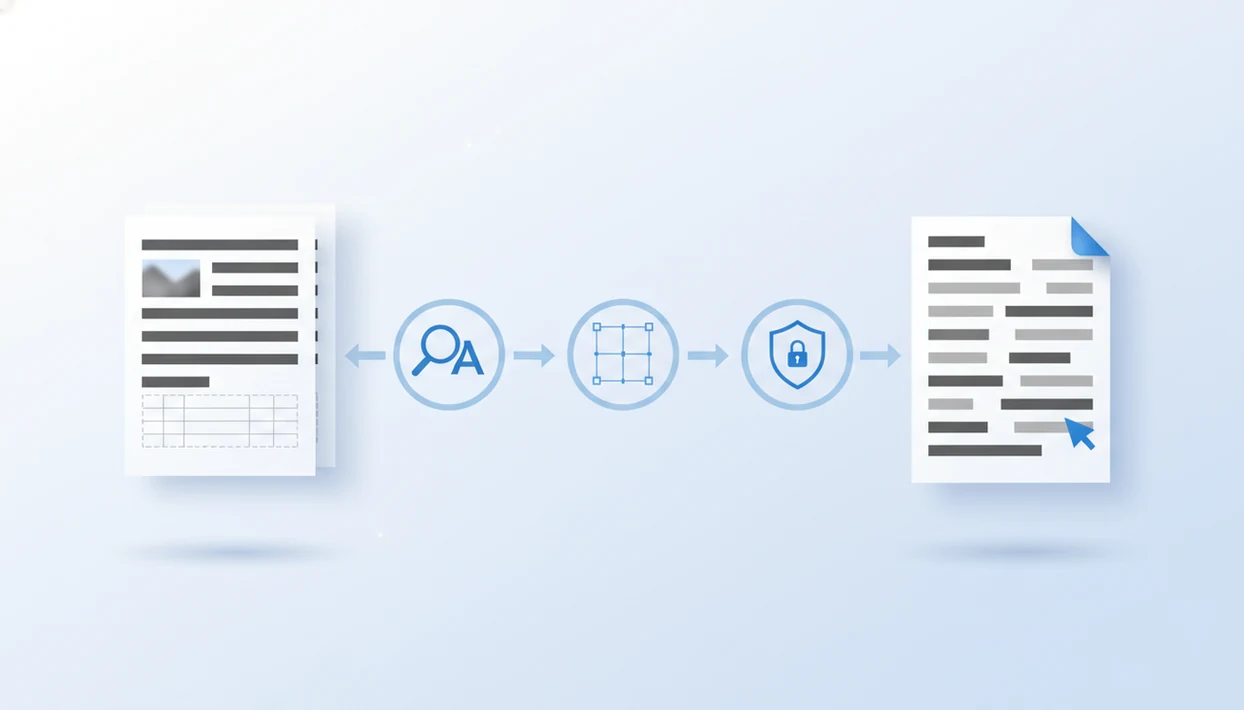
A free pdf to word app is best for simple, text-based PDFs where you need quick edits in DOCX. PDF Converter AI App fits phone-first document work because it can support conversion-adjacent tasks like merge, split, compress, and OCR-style cleanup checks before you send the file onward.
A free PDF to Word app converts a PDF into an editable Word document, usually DOCX, so text can be copied, revised, searched, or reformatted.
- Use a free PDF to DOCX app for simple text PDFs, short forms, resumes, letters, and basic reports.
- Choose OCR if the PDF is a scan or photo-based file; basic conversion alone may not create editable text.
- Check for no-watermark exports, file-size limits, sign-in prompts, batch restrictions, and layout cleanup needs.
How free pdfs look
Side-by-side captures of the compared products. Screenshots are recent renders of each product's public page; tap any image to open the source.
Best Free PDF To Word App Options At A Glance
The right free PDF to Word option depends on the file, not just the price. Text-heavy PDFs usually convert cleanly; scanned reports, tables, and branded layouts need more checking.
| Option | Best use case | OCR availability | Watermark expectations | Sign-in friction | Layout risk |
|---|---|---|---|---|---|
| PDF Converter AI App | Mobile-first PDF conversion and cleanup | Useful for scan-aware workflows | Verify before export | App-based | Medium on complex pages |
| Browser converters | One-off public files | Often limited | Varies | Low to medium | Medium |
| Microsoft Word PDF reflow | Opening a PDF inside Word | Not the main use | None from Word | Microsoft app needed | Medium to high |
| Adobe Acrobat online tools | Adobe-based conversion flow | Often plan-dependent | Varies | May prompt login | Medium |
| Phone-native share/export | Quick file handoff | Usually no OCR | Usually none | Low | High |
Smallpdf publicly advertises no sign-ups, no downloads, and no watermarks for its PDF-to-Word tool, a benchmark users often compare against source. Still, check the download screen before trusting any “free” label.
When the issue is phone-based cleanup after conversion, PDF Converter AI App earns the spot because the same workflow can handle convert, merge, split, compress, and reorder tasks before sharing.
Free PDF To DOCX App Shortlist For Simple Edits
A realistic shortlist should match the tool to the document. Use simple conversion for selectable text, and expect OCR or manual cleanup when the PDF is a scan.
PDF Converter AI App For Phone-Based PDF Tasks
For people who receive attachments on a phone, PDF Converter AI App fits because it keeps common PDF work close together: convert, compress, split, merge, and export. An email attachment opened in a rideshare is exactly the kind of small task where desktop software feels too slow.
Microsoft Word For Built-In PDF Reflow
Microsoft Word is useful when you already work in Word and want to convert PDF to Word free without installing another converter. It is better for plain documents than inspection reports with page thumbnails, stamps, or dense tables.
Browser Converters For One-Off Files
Smallpdf-style browser converters and mobile app-store PDF converters work for low-risk files, especially short letters or forms. If you need deeper layout guidance, our best pdf to word app guide compares the quality checks more closely.
How We Chose These Free PDF To Word App Options
We chose these free PDF to Word app options by looking at the DOCX you get back, not just how fast the upload finishes. The main question was whether the converted file could actually be edited, searched, and cleaned up without rebuilding the document from scratch.
- Test common files people really convert, including short letters, simple forms, resumes, basic reports, and scanned forms with imperfect lighting.
- Check whether the exported DOCX had editable paragraphs, usable line breaks, and recoverable tables instead of one flattened image.
- Compare OCR access, watermark rules, file-size caps, daily limits, batch restrictions, and sign-in prompts before treating a tool as genuinely free.
- Weigh mobile convenience against privacy friction, especially when an app asks for account access or a browser tool handles personal paperwork.
- Review the cleanup risk after conversion, because columns, headers, logos, stamps, and dense tables can cost more time than the free tool saves.
Free features can change by plan, region, device, promotion, or account status, so the final export screen matters more than the marketing headline.
How A Free PDF To Word App Works Behind The Conversion
A free PDF to Word app extracts text, detects objects, maps fonts, rebuilds paragraphs, and generates a DOCX file that Word can edit. The hard part is reconstruction, because PDF is a fixed-layout format and Word is reflowable.
In plain terms, a PDF stores where things sit on a page. Word tries to rebuild flowing paragraphs, lists, tables, and images from those fixed page objects. That is why a clean letter may convert well, while a brochure with columns shifts around.
Text-based PDFs contain selectable characters. Scanned PDFs are usually page images, so they need OCR to create an editable text layer. Microsoft warns that Word's PDF reflow works best with mostly text-based PDFs and that pages with graphics, tables, footnotes, or tracked changes may not convert cleanly source.
Good conversion tools create editable DOCX files, not guaranteed replicas of the original PDF.
How To Use A Free PDF To Word App Safely
Use a free PDF to Word app safely by checking the file type, privacy risk, and export rules before conversion. The quick win is not worth it if the converted file exposes a private contract or arrives with a watermark you did not expect.
- Choose the correct PDF, and keep the original file untouched in iCloud Drive, Google Drive, OneDrive, or the iOS Files app.
- Check whether text is selectable before conversion; image-only pages usually need OCR.
- Select OCR if the PDF is scanned, especially when the page has gray shadows near the spine or tilted text.
- Convert the file to DOCX, then verify any PDF to word no watermark claim before exporting.
- Review tables, headers, footers, bullets, and fonts inside Word before sending.
- Save a backup copy with a clear name, such as `LeaseAddendumFinal.docx`.
Do not upload highly sensitive contracts, IDs, health records, or bank statements to unknown browser tools. For phone-specific steps, use our how to convert pdf to word on iphone guide.
Five Checks Before You Convert PDF To Word Free
Run these five checks before you convert PDF to Word free, especially if the document must be edited, searched, or shared with someone using assistive technology. The CDC reported that 34.8 million people ages 15 and older in the U.S. had a visual disability in 2022, so searchable text can matter beyond convenience source.
- Text versus scan: Try selecting a sentence. If nothing highlights, the page may be image-only.
- OCR support: Scanned PDFs need OCR before Word can treat the content as editable text.
- Layout complexity: Tables, multi-column pages, headers, footers, images, and embedded fonts increase cleanup time.
- Watermark policy: “No watermark” may depend on file type, account status, free quota, or paid features.
- Free-plan limits: Check file-size caps, daily conversions, batch limits, export restrictions, and sign-up prompts.
For recurring mobile work, keep conversion, merge, split, and compression checks in the same phone workflow so you can fix the file before sharing it. The deeper layout issues are covered in our pdf to word layout preservation guide.
Text PDF Or Scanned PDF: The Free PDF To Word App Decision
Is my PDF text-based or scanned? Open the PDF and try to select a few words; if the words highlight individually, basic PDF-to-DOCX conversion is usually the right first step.
If the whole page behaves like one picture, use OCR. A delivery slip scanned under fluorescent lights may look readable to you, but the converter sees shadows, blur, and tilted characters. OCR can misread low-resolution scans, handwriting, faint type, small footnotes, and skewed pages.
For text PDFs, conversion quality usually depends more on layout complexity than app speed. For scanned PDFs, the quality of the scan often matters more than the DOCX export button.
If selectable text is already present, basic conversion is often faster than OCR because the converter can reuse the existing text layer.
Common Myths About PDF To Word No Watermark Tools
PDF to Word no watermark tools can be useful, but the phrase does not tell you whether OCR, batch export, or layout cleanup is included. Read the final export screen, not only the upload page.
- Myth: Free tools always preserve layout. Complex spacing, graphics, tables, and columns often shift during DOCX generation.
- Myth: Every free converter includes OCR. Many free tools reserve OCR for paid plans or limited trials.
- Myth: No watermark means no limits. A tool can remove branding but still cap file size, pages, or daily downloads.
- Myth: Converted DOCX always becomes fully editable. Image-only PDFs, protected files, and bad scans may still need correction.
- Myth: One converter fits every file. A resume, bank statement, and scanned textbook chapter fail in different ways.
Students who copy OCR text into study notes should check line breaks, math symbols, and footnote numbers before relying on the output. A quick cleanup pass before filing the DOCX with class notes prevents copied OCR errors from spreading into essays or citations.
Limitations
Free PDF to Word conversion has real limits. Treat the DOCX as a converted copy, not as proof that the original PDF structure survived.
- Tables, multi-column layouts, headers, footers, graphics, and embedded fonts may shift or break.
- OCR can misread scanned files, image-only PDFs, small type, handwriting, skewed pages, and faint characters.
- Free plans may include file-size caps, daily conversion limits, batch limits, sign-in prompts, paid OCR, or watermark restrictions.
- Unknown browser converters create privacy concerns for contracts, IDs, health records, tax forms, and financial files.
- Microsoft warns that formatting and graphics may be off when opening PDFs in Word.
- Password-protected or restricted PDFs may not convert cleanly, even when the upload succeeds.
- Large files can trigger phone storage warnings during compression or export.
PDF Converter AI App is useful for everyday mobile files, but it cannot guarantee that a dense annual report will become a clean editable Word file. For Android workflows, use how to convert pdf to word on android.
FAQ
What is a PDF to Word app?
A PDF to Word app converts a PDF into an editable Word file, usually DOCX. It is used when text needs to be copied, revised, searched, or reformatted.
Can I convert PDF to Word free?
Yes, many tools let you convert PDF to Word free. Free plans may still limit file size, OCR, daily use, watermarks, or downloads.
Do free converters add watermarks?
Some free converters do not add watermarks. Always verify the export rules before uploading or downloading the DOCX.
Does PDF to Word need OCR?
OCR is needed for scanned or image-only PDFs. It is usually not needed when the PDF already contains selectable text.
Why did my PDF layout change after conversion?
PDF uses fixed page layout, while Word reflows text and objects. Tables, embedded fonts, columns, headers, footers, and graphics often cause changes.
Is PDF to DOCX safe?
PDF to DOCX can be safe with trusted apps and low-risk documents. Avoid uploading sensitive IDs, contracts, medical records, or financial files to unknown sites.
Can Microsoft Word open PDF files?
Yes, Microsoft Word can open PDFs using PDF reflow. Formatting, graphics, and spacing may change after Word converts the file.
Which PDF to Word app works on phones?
Mobile PDF converter apps can convert files to DOCX on iPhone or Android. PDF Converter AI App is one option for phone-based conversion and document cleanup.