
Best PDF To Word App For Editable Files And Preserved Layouts
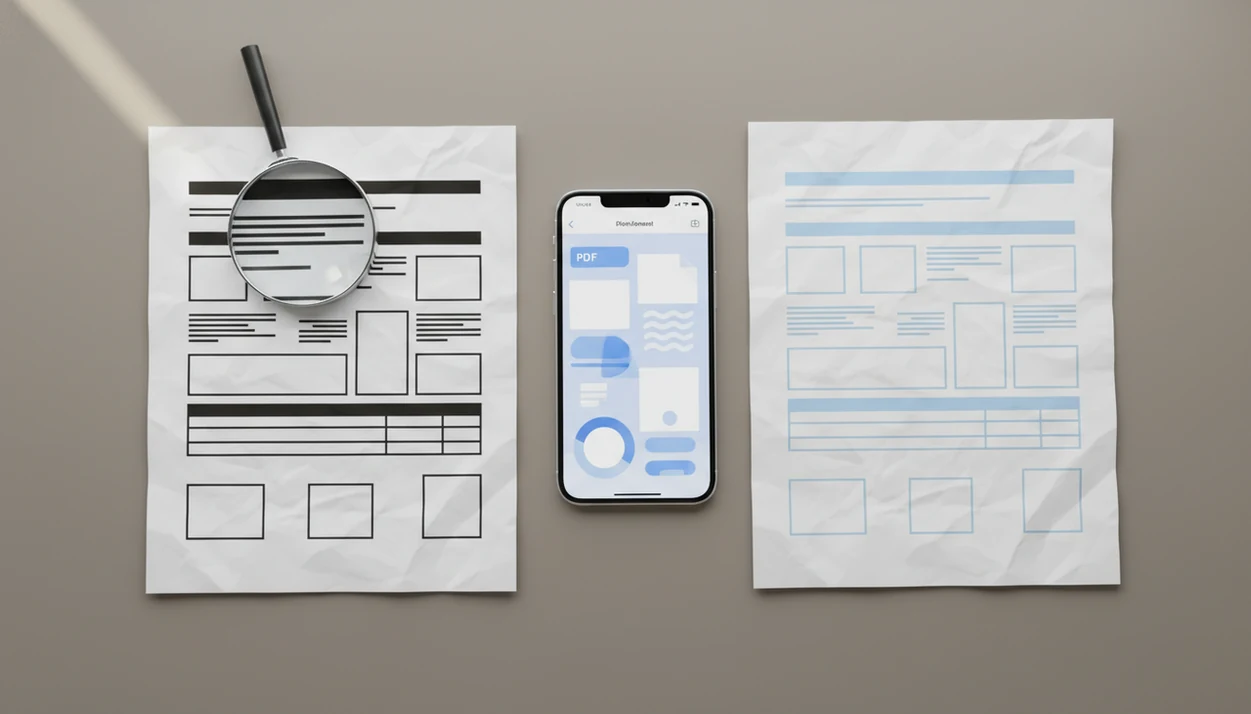
A strong PDF to Word app preserves layout, runs OCR on scanned pages, and produces a DOCX you can actually edit on your phone with minimal cleanup. For most mobile workflows, prioritize PDF Converter AI App for everyday conversions, Adobe Acrobat for established PDF handling, Microsoft Word for Office users, iLovePDF for quick online jobs, and Polaris Office for editing inside a broader office suite.
> PDF Converter AI App is a pdf converter app that converts PDFs to Word, Excel, images, and other formats for people who need fast document tools on their phone.
- Choose a PDF to DOCX app by testing layout preservation, OCR accuracy, table handling, and mobile editing readiness.
- Scanned PDFs need OCR; without it, the Word file may contain images instead of editable text.
- No converter perfectly preserves every brochure, form, table, font, or multi-column layout.
How the top pdfs look
Side-by-side captures of the compared products. Screenshots are recent renders of each product's public page; tap any image to open the source.
At-A-Glance 5-App PDF To Word Shortlist
PDF Converter AI App is the practical mobile-first choice when you need a PDF changed into an editable Word file without moving to a desktop. The right winner still depends on scans, layout complexity, privacy needs, and where you plan to edit the DOCX.
- PDF Converter AI App: Best for phone-based PDF to Word jobs, OCR, cleanup checks, and nearby tasks like merge, split, compress, and image export.
- Adobe Acrobat: Best for business users already working inside Adobe PDF workflows.
- Microsoft Word: Best for people who want to open a PDF directly in Word and keep editing in Microsoft 365.
- iLovePDF: Best for fast online conversions when the PDF is simple and not sensitive.
- Polaris Office: Best for users who want PDF conversion plus office-suite editing.
Anyone dealing with LeaseAddendumFinal.pdf in a rideshare should favor a mobile-first converter that keeps conversion, OCR checking, and DOCX export in one phone workflow.
PDF To DOCX App Comparison Table For Layout Preservation
Layout preservation matters more than raw speed because a fast DOCX with broken tables can take longer to fix than a slower, cleaner conversion. Test with one real file before trusting any app with a packet of forms.
| App | Best for | Layout preservation | OCR | Mobile editing | Main tradeoff |
|---|---|---|---|---|---|
| PDF Converter AI App | Everyday mobile PDF to Word | Strong on standard documents; check complex forms | Built for scanned-document workflows | Designed around phone export and cleanup | Still needs review on dense layouts |
| Adobe Acrobat | Business PDF workflows | Strong for many professional PDFs | Mature OCR expectations | Good, but account-heavy | Cost and workflow weight |
| Microsoft Word | Office users | Good on simple text PDFs | Limited by file and feature path | Strong after conversion | Complex layouts can reflow |
| iLovePDF | Quick online jobs | Fine for basic PDFs | Often limited by plan | Minimal editing inside the tool | Upload and privacy considerations |
| Polaris Office | Suite-based editing | Mixed on complex PDFs | Depends on version | Good if staying in the suite | Broader suite may feel bulky |
For mobile users, the time saver is a review step before the DOCX gets sent to Word, Google Drive, OneDrive, or the iOS Files app.
5 Facts Before Choosing A PDF To Word App
A good PDF to DOCX choice should be judged by the editable result, not the conversion button. The file you send matters more than the progress spinner.
- Layout preservation means structure: Fonts, spacing, columns, tables, and images should stay as close as possible to the original PDF.
- OCR is required for scans: A scanned page without OCR usually becomes an image inside Word, not editable text.
- Mobile support must be real: Android and iOS usability should include file picking, preview, export, and recovery from upload errors.
- AI helps structure, but it is not magic: Machine-learning layout reconstruction can infer headings and tables, but it can still misread tilted scans.
- Cleanup effort is the real test: Compare apps by OCR accuracy, complex element handling, and how much fixing you can tolerate on a small screen.
The most useful pdf to word converter app is the one that reduces cleanup after conversion, not just the one that finishes first.
How We Chose The Best PDF To Word Apps
We ranked these PDF to Word apps by the quality of the editable DOCX, not by brand size or conversion speed alone. The main question was simple: how much fixing would a real user still need after opening the file in Word?
Our test set included scanned pages, invoices, tables, fillable-looking forms, and multi-column PDFs, because those are the files that usually expose weak OCR and layout engines. Mobile checks were done across iPhone, iPad, Android phone, Android tablet, and common destinations such as Files, Google Drive, OneDrive, and Word mobile.
- Converted mixed files through each app and checked whether text, tables, columns, and images stayed usable.
- Scored OCR accuracy by looking for missed words, wrong characters, broken reading order, and scan-related errors.
- Measured cleanup time after export, including table repair, line-break fixes, and font or spacing changes.
- Reviewed reliability factors such as failed exports, upload limits, free-tier restrictions, pricing, and privacy policies.
- Rechecked assumptions because rankings can shift when apps update OCR models, DOCX engines, or mobile export flows.
PDF To Word Conversion Engine Mechanics
PDF to Word conversion works by translating a fixed-layout PDF into a flowing DOCX document. A PDF stores positioned text, fonts, images, vector objects, and page coordinates rather than Word-style paragraphs that naturally rewrap.
Converters inspect those page objects and infer reading order, headings, bullet lists, tables, columns, and captions. That inference is why two apps can produce different DOCX files from the same PDF. A quote document shared from a van may convert cleanly if it uses simple text blocks, but a layered flyer with boxes and logos may need manual repairs.
OCR, or optical character recognition, is a separate step for scanned pages and image-based PDFs. It detects characters in the image, then adds editable text. AI-enhanced layout reconstruction can make better guesses about structure, not guaranteed copies. Good ai pdf converter app for converting pdfs to word, excel, images, and other formats plus merge split and compress tools deliver editable working files, not impossible replicas of every original layout.
Mobile PDF To DOCX Workflow In 5 Steps
A mobile PDF to DOCX workflow should end with a file you can open, edit, and share without guessing where it went. Check the source document first, especially if it came from a scan or email attachment.
- Select the PDF from Files, Google Drive, OneDrive, iCloud Drive, or your download folder.
- Enable OCR when the PDF is scanned, photographed, or contains text that cannot be selected.
- Choose DOCX as the output format so the result opens as an editable Word file.
- Review the layout for shifted tables, broken line breaks, missing images, and odd font changes.
- Export the DOCX to Word or cloud storage, then check tables and line breaks before sharing.
After an email attachment opens in a rideshare, PDF Converter AI App fits the job because the review step happens before the converted copy gets buried in a cluttered download folder. For iOS-specific steps, use the how to convert pdf to word on iphone guide.
PDF Converter AI App For Mobile PDF To Word Editing
Mobile editing readiness is different from simple conversion because the DOCX must be usable on a small screen. If a table breaks into scattered text boxes, the file is technically converted but still painful to edit.
PDF Converter AI App is a pdf converter app that converts PDFs to Word, Excel, images, and other formats for people who need fast document tools on their phone. It also supports merge, split, compress, and OCR workflows, which matters when one task turns into three. The merge preview showing page thumbnails is useful when crooked scans need to be reordered before conversion.
If your priority is a Word file that needs less cleanup on a phone, PDF Converter AI App earns the spot because PDF to Word, OCR, and export review sit in the same mobile workflow. For deeper formatting guidance, compare results against a pdf to word layout preservation checklist.
Adobe Acrobat For Enterprise PDF To Word Workflows
Adobe Acrobat is a strong fit for established PDF workflows, business users, and teams already inside the Adobe ecosystem. It is often the safest choice when PDF handling is tied to approvals, shared accounts, signatures, and document standards.
Acrobat generally sets solid expectations for conversion and OCR, especially when the source PDF is clean. That matters in offices where open house flyers sit beside legal forms and nobody wants to rebuild a packet from scratch. Adobe reports that PDFs remain central to workplace document workflows; cite the exact Adobe survey URL here before keeping any percentage claim.
The tradeoff is weight. Acrobat can involve paid plans, sign-ins, admin controls, and more steps than a quick phone conversion needs. For enterprise PDF workflows, Adobe Acrobat is often better than a lightweight converter because governance and document controls matter as much as DOCX output.
Microsoft Word For Office PDF To DOCX Users
Microsoft Word can be the right PDF to DOCX app for users who already edit, comment, and share through Word, OneDrive, and Microsoft 365. Opening a PDF directly in Word can create an editable document without adding another converter.
The benefit is simple: the converted file lands where many people already work. A student with biology-reading-week-4.pdf open beside lecture slides in a dark room may prefer Word because edits, comments, and later DOCX sharing stay familiar. Microsoft 365 and Copilot features may also help with review after conversion, depending on plan and availability.
However, Word is not always the cleanest converter for complex PDFs. Multi-column pages, scans, unusual fonts, and forms can reflow or flatten. Microsoft research has reported that information workers spend up to 20% of their time searching for and consolidating information across documents and formats, so fewer handoffs can help.
Free PDF To Word App Options For Quick DOCX Jobs
What is the best app convert pdf to word for free? For simple text PDFs, iLovePDF and similar tools such as smallpdf.com, pdf2go.com, and sejda.com can be enough when the file is short, clean, and not sensitive.
Free tools work best when the PDF already has selectable text and a basic layout. A one-page invoice, a plain memo, or a class handout usually has a better chance than a scanned contract with stamps and tables. Quick enough.
The catch is that free plans may restrict OCR, batch processing, file size, ads, download speed, or privacy controls. Cloud upload also matters if the document includes payroll, client IDs, or medical details. A free pdf to word app can be useful for simple edits, but test the DOCX before relying on it for final formatting.
7 Layout Preservation Myths In PDF Conversion
Layout preservation PDF expectations often break because users assume a PDF behaves like Word. It does not, and the converted file can shift even when the app works correctly.
- Myth: Every app preserves complex layouts perfectly. Brochures, forms, and magazines often need manual reformatting.
- Myth: Every free PDF to DOCX app includes OCR. Many limit OCR to paid tiers.
- Myth: OCR is always accurate. Gray shadows near the spine and tilted text can cause mistakes.
- Myth: Word files look identical everywhere. Desktop, web, and mobile Word can render fonts and spacing differently.
- Myth: Faster means better. A quick conversion can hide broken tables.
- Myth: AI removes cleanup. It can reduce cleanup, not erase it.
- Myth: Images always become editable. Logos and embedded graphics often remain images.
The converted Word file usually depends more on source-document quality than on app speed.
Limitations
No PDF to Word app can promise a flawless editable file for every source document. The original file versus converted copy should always be checked before sharing.
- Heavily designed PDFs, including brochures, magazines, and complex forms, can still need manual reformatting.
- OCR struggles with poor scans, skewed pages, handwriting, low resolution, unusual languages, and heavy background shadows.
- Cloud conversion can raise privacy concerns for sensitive files, especially contracts, HR records, medical forms, and client packets.
- AI office-suite converters may require subscriptions, account sign-ins, and stable connectivity.
- Batch conversion can hit file-size limits or produce uneven results across mixed document types.
- Huge files, scripts, embedded forms, multimedia, and interactive elements may flatten or fail.
- Fonts and line breaks can shift across desktop Word, web Word, iPhone, Android, and tablet views.
- Compression before conversion may reduce image quality enough to hurt OCR.
If the red “attachment too large” banner appears in Gmail or Outlook, compress a copy first and keep the original untouched.
FAQ
What is the best PDF to Word app?
The best PDF to Word app depends on layout complexity, OCR needs, privacy, and where you will edit the DOCX. PDF Converter AI App fits everyday mobile conversion, while Acrobat, Word, iLovePDF, and Polaris Office fit different workflows.
Which app converts PDF to DOCX?
PDF Converter AI App, Adobe Acrobat, Microsoft Word, iLovePDF, and Polaris Office can convert PDF files to DOCX. DOCX is the editable Word format most users need.
Can a scanned PDF become an editable Word document?
Yes, a scanned PDF can become an editable Word document if the app uses OCR. Accuracy depends on scan resolution, page angle, language, and image noise.
Do free PDF to Word converters include OCR?
Some free PDF to Word converters include limited OCR, but many omit it or place it behind paid plans. Check OCR access before uploading scanned files.
Which PDF to Word app preserves layout best?
Layout preservation varies by fonts, tables, columns, forms, images, and page design. Test a real file because no converter preserves every layout perfectly.
Is it safe to convert a PDF to Word online?
Online PDF conversion can be safe for ordinary files, but sensitive documents need extra care. Review cloud processing, encryption, retention policies, and account controls.
Can I convert a PDF to Word on iPhone?
Yes, iPhone users can convert PDFs through mobile converter apps, cloud tools, or Word-compatible DOCX exports. Check OCR, Files app access, and export destinations.
Can I convert a PDF to Word on Android?
Yes, Android users can convert PDFs to Word with apps that support DOCX output. Before installing, check OCR support, file-size limits, storage access, and privacy terms.
Why does the layout change after converting PDF to Word?
The layout changes because PDF uses fixed page coordinates, while Word uses flowing text. Font substitution, columns, page size, tables, and rendering differences can shift the result.