
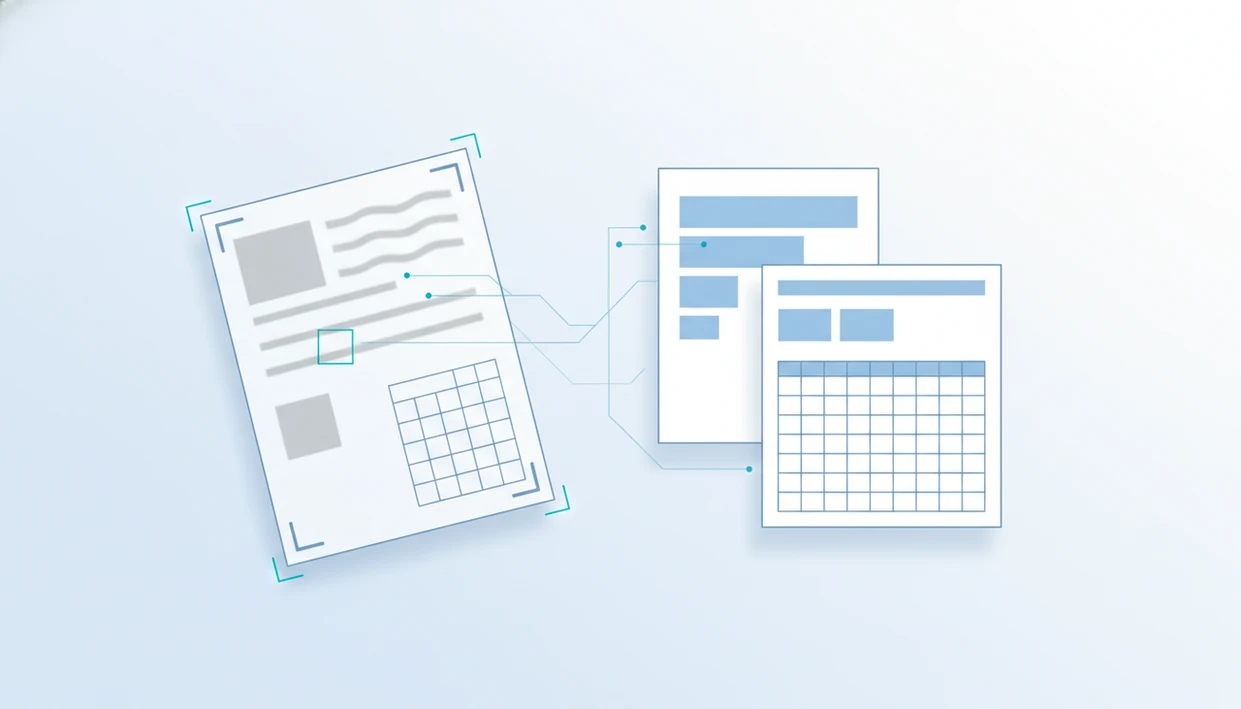
> An AI PDF converter app is a mobile or desktop tool that applies artificial intelligence, primarily OCR and layout analysis, to recognize text, tables, and structure in PDFs before converting them into editable formats like Word, Excel, PowerPoint, images, or plain text.
- AI in a PDF converter app mostly powers OCR and layout detection, not the file-format swap itself.
- A reliable AI document converter handles both native and scanned PDFs while preserving formatting.
- Expect manual cleanup on complex tables, multi-column layouts, and low-quality scans even with AI.
What An AI PDF Converter App Actually Does
An AI PDF converter app uses AI to recognize what is inside a PDF, then uses standard conversion engines to export that content into Word, Excel, images, or text. AI handles OCR, layout understanding, and content recognition; it usually does not perform the file-format swap by itself.
A native PDF already contains selectable text, font data, and page structure. A scanned PDF is closer to a photo, so the app must detect letters and rebuild an OCR text layer before export. That difference matters when a contract page loads on cellular data and the text won't select.
PDFs are not a niche workflow. Adobe reported that 81% of knowledge workers use PDFs at least weekly for work tasks in 2023 source.
For mobile users who need editable files from scans, PDF Converter AI App fits because OCR is built into the conversion flow before Word, Excel, or plain-text export. Good AI PDF converters recognize content first, then convert it, not the other way around.
Five Facts About AI PDF Converters Most Users Miss
- OCR is the core AI feature for scanned PDFs because it turns page images into selectable, searchable text.
- AI assistants that summarize, translate, or chat with a PDF are separate from the converter engine that exports files.
- Not every PDF converter uses AI; many tools still rely on rule-based parsing for clean native PDFs.
- Cloud-based AI processing can raise privacy questions because document content may leave the phone during recognition.
- The OCR technology market is projected to reach USD 26.31 billion by 2030, according to Fortune Business Insights source.
That last point explains why “AI” appears on so many document apps now. Some labels are useful. Some are just packaging.
The practical test is simple: upload a scanned page with gray shadows near the spine and tilted text, then check whether the output is searchable and editable. If the app only changes the file extension, it is not doing meaningful OCR.
For users comparing mobile tools, our best pdf converter app guide covers the broader checklist beyond AI claims.
How AI OCR And Layout Detection Work Inside A PDF Converter
AI OCR inside a PDF converter works by cleaning the page image, recognizing characters, detecting layout, rebuilding tables, and correcting likely text errors. The technical terms are image preprocessing and layout analysis. In plain language, the app first makes the page easier to read, then guesses what each part is.
OCR Text Recognition Pipeline
The pipeline usually starts with deskewing, noise removal, and binarization. Deskewing straightens a crooked scan; binarization turns gray text and background into clearer dark-and-light regions. Neural networks trained on fonts, print styles, and some handwriting then predict letters and words.
Post-processing comes next. Spell-check and language-model correction can fix “rn” being read as “m,” but they can also introduce mistakes. That is why LeaseAddendumFinal.pdf still needs a human review before anyone sends it.
Table And Column Detection
Layout detection identifies headers, columns, footnotes, tables, and reading order. Table extraction looks for cell boundaries, then maps detected text into rows and columns for Excel.
Knowledge workers spend about 19% of the workweek searching for and gathering information, according to a McKinsey analysis source. OCR and searchable exports reduce that drag when the source scan is clear.
How To Use An AI PDF Converter App For Scanned Documents
To use an AI PDF converter app for a scanned document, import the PDF, choose the output format, enable OCR, and review the converted copy before sharing it. The review step is not optional for scanned pages.
- Open or import the scanned PDF from Files, Google Drive, OneDrive, iCloud Drive, or local storage.
- Select the target format, such as Word, Excel, plain text, or image export.
- Enable OCR and choose the document language before starting the conversion.
- Run the conversion, then open the output and check whether text selects correctly.
- Proofread the file and adjust tables, fonts, page breaks, and reading order manually.
A Pew survey found that 63% of U.S. adults reported using cloud services to store or share files, so mobile import paths matter source. The file may start in email, land in the iOS Files app, and finish in OneDrive.
If you need the phone setup first, the download pdf converter app page explains the mobile install path.
When To Use OCR Versus Standard PDF Conversion
Use OCR when the PDF is scanned, photographed, faxed, or partly image-based. Use standard conversion when the PDF already has selectable text and clean embedded structure.
| Document type | Better method | Why it matters |
|---|---|---|
| Native PDF with selectable text | Standard conversion | Faster and usually cleaner because text already exists |
| Scanned PDF | OCR conversion | The app must recognize text from page images |
| Photo of a document | OCR conversion | Camera angle, shadows, and blur affect accuracy |
| Faxed document | OCR conversion | Low contrast and artifacts need recognition cleanup |
| Mixed PDF | Page-by-page judgment | Some pages may need OCR while others do not |
OCR adds processing time and can introduce errors. For native PDFs, standard PDF to Word conversion is often better than OCR because it preserves existing text objects instead of re-reading the page as an image.
What AI Document Conversion Looks Like In PDF Converter AI App
PDF Converter AI App supports exports to Word, Excel, PowerPoint, images, and plain text, with OCR available for scanned PDFs inside the conversion flow. It also keeps merge, split, and compress tools near the converter instead of making users jump between separate apps.
For small business paperwork, that matters. A shop counter covered with forms usually needs one clean packet, not three half-finished files. You can convert the scanned pages, merge the result, and compress the final PDF if Outlook shows the red “attachment too large” banner.
For students who need biology-reading-week-4.pdf turned into notes, OCR and plain-text export sit beside page tools like reorder and split. iPhone-specific workflow details are covered in our pdf converter app for iphone guide.
Common Myths About AI PDF Converter Apps
Myth: AI itself does the file format conversion. In most cases, AI recognizes text, tables, and layout, while a document engine performs the PDF-to-Word, Excel, or image export.
Myth: every PDF converter uses AI. Many older or lightweight converters are rule-based and work fine on native PDFs with simple structure.
Myth: OCR perfectly recreates scanned layouts and fonts. It does not. A thumbnail grid showing crooked scans is usually a warning sign before conversion even starts.
Myth: AI converters automatically guarantee strong privacy. Privacy depends on whether processing is local, cloud-based, or handled by a third-party model.
For users who need scanned PDFs converted without rebuilding documents from scratch, PDF Converter AI App fits because OCR, export format selection, and cleanup tools stay in one mobile workflow. Still, confidential files should be checked against the app privacy policy before cloud OCR is used.
AI PDF Converter App Vs Traditional PDF Converters
AI PDF converter apps are better for scanned documents, table detection, and complex layouts; traditional PDF converters are often faster for clean native PDFs. The right choice depends more on the source document than on the marketing label.
| Converter type | Strength | Trade-off |
|---|---|---|
| AI PDF converter | Handles scans, OCR text, tables, and reading order better | May require cloud processing and more review time |
| Traditional converter | Fast on native PDFs with selectable text | Struggles with image-only scans |
| AI assistant PDF app | May summarize, translate, or chat with document content | Assistant features are separate from conversion quality |
| Offline rule-based tool | Keeps processing local in many cases | Limited OCR and weak table recovery |
Tools such as adobe.com/acrobat, ilovepdf.com, smallpdf.com, pdf2go.com, and sejda.com vary in how much AI they expose. If the file is already clean, a traditional path may be enough.
Related PDF Converter AI App Features
PDF Converter AI App includes related tools that matter after the first conversion, especially on mobile.
- Merge and split PDFs: Combine client forms or extract one signature page from a larger packet.
- Compress PDF file size: Reduce large exports when Gmail or Outlook blocks the attachment.
- Convert PDF to images and back: Export JPG or PNG pages, then rebuild a PDF when needed.
- PDF to Excel: Pull tables from reports, invoices, and schedules for spreadsheet cleanup.
For table-heavy documents, a dedicated pdf to word converter app workflow may be less useful than Excel export if rows and columns are the real goal.
Limitations
AI PDF converters can improve OCR and layout recovery, but they cannot guarantee a clean editable file from every PDF. The source document still sets the ceiling.
- Low-resolution scans, skewed photos, gray shadows, and handwritten notes reduce OCR accuracy.
- Multi-column papers, financial tables, and interactive forms often need manual cleanup after export.
- AI features may upload content to cloud models, which can be unsuitable for confidential or regulated documents.
- One-click perfect conversion is overhyped. Proofreading is always needed before sending the file.
- Not all AI PDF converter apps support offline OCR or offline table extraction.
- OCR accuracy depends on scan quality, language, font clarity, and document complexity.
- Large batch jobs can trigger a phone storage warning during compression or export.
If a laptop bag is wedged under your knees between meetings, PDF Converter AI App can handle quick mobile conversion. But final review should wait until you can actually read the output.