
Check PDF Conversion Quality Before You Share a File
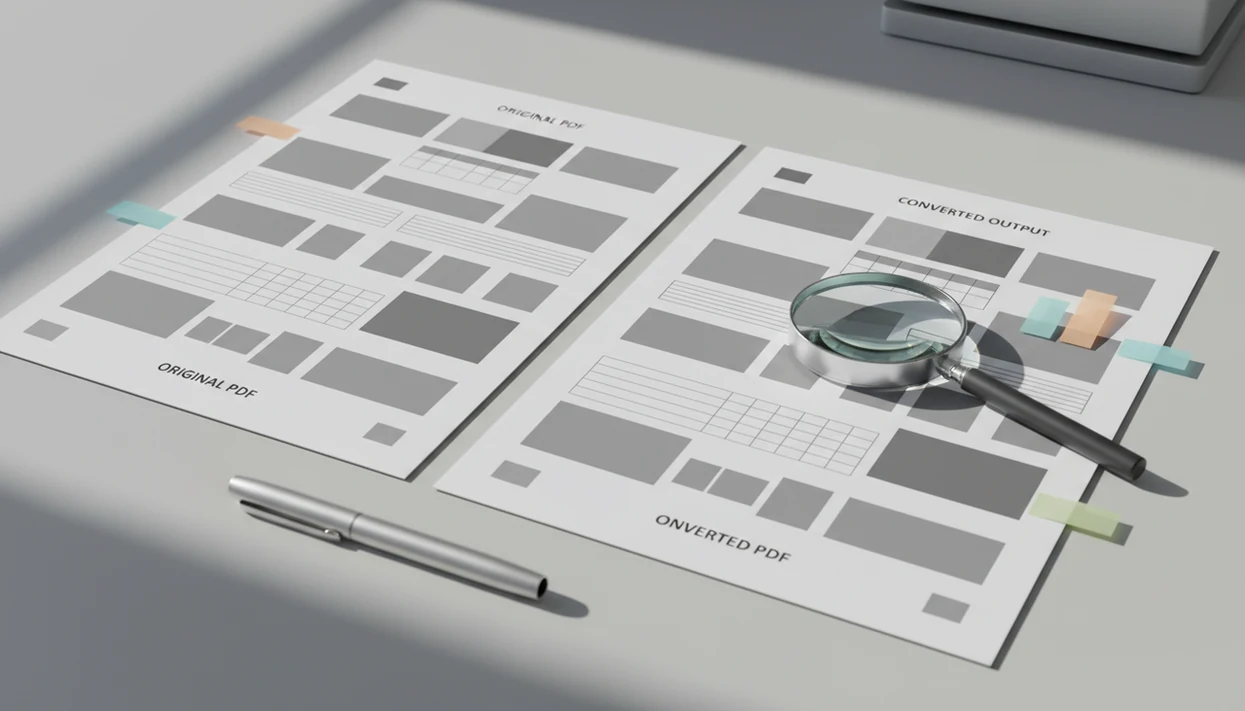
To check pdf conversion quality, compare the converted file against the original page by page, then test text accuracy, tables, images, links, page order, and file size before you share or rely on it. Pay extra attention to OCR output and spreadsheet conversions because small recognition or alignment errors can change the meaning of a document.
> Definition: PDF conversion quality means how accurately a converted file preserves the original document’s text, layout, images, data, structure, and usability in the new format.
- Use a side-by-side review first: page order, headings, fonts, spacing, tables, images, and page breaks should match the original closely enough for the file’s purpose.
- Run an OCR quality review on scanned PDFs by searching key terms, copying sample text, and proofreading high-risk names, numbers, dates, and legal or financial clauses.
- Verify PDF conversion differently for Word, Excel, images, and searchable PDFs because each output format fails in different ways.
PDF Output Checklist for Fast Conversion Quality Review
A fast PDF output checklist starts with a side-by-side comparison of the original and converted file. Check page count, page order, margins, headings, and page breaks before you look at smaller formatting details.
Then inspect fonts, bullets, numbering, tables, images, charts, links, bookmarks, and file size. Open the output on another device if the file will be shared, printed, uploaded, or signed. A converted file can open without an error message and still contain shifted text, broken tables, missing images, or unusable OCR.
Small mistakes hide well.
Tools like PDF Converter AI App can help with everyday mobile checks across PDF, Word, Excel, image, compression, merge, split, and OCR outputs. If your workflow includes teams and client packets, a pdf converter app for business should still be paired with human review before anything final goes out.
PDF Conversion Engine Errors Behind the Scenes
PDF conversion errors happen because converters must interpret objects, not just “read pages.” A PDF may contain text objects, embedded fonts, images, tables, vector shapes, reading order data, and scanned-page OCR layers.
How PDF conversion works: the engine identifies those objects, rebuilds them into the target format, and makes reconstruction choices that may not match the original layout. Word output needs editable paragraphs. Excel output needs table structure. Image export needs visual fidelity. PDF/A-style output may prioritize preservation and long-term viewing.
Scans add another layer. Resolution, contrast, skew, font style, gray shadows near the spine, and tilted text can all affect OCR text. Mobile conversion tools can speed routine Word, Excel, image, merge, split, compress, and OCR jobs, but they do not guarantee a perfect reconstruction.
5-Step Verify PDF Conversion Workflow
Use the same verify PDF conversion workflow every time so you do not miss quiet failures. The goal is to match the review depth to the document’s risk, not to proofread every grocery receipt like a contract.
1. Set the output purpose
- Decide whether the file is for viewing, editing, printing, submitting, archiving, or data analysis.
2. Compare the files side by side
- Open the original and converted file together, then compare page count, order, headings, margins, and obvious missing content.
3. Review high-risk pages
- Inspect the cover page, tables, signatures, charts, forms, footnotes, and final pages before lower-risk body text.
4. Test text, links, and devices
- Test copy and paste, search, hyperlinks, bookmarks, and opening the file on a second device.
5. Fix, reconvert, or approve
- Save a corrected copy or rerun conversion with different settings if problems appear.
For student files such as biology-reading-week-4.pdf, this workflow is often faster than guessing after an upload fails. Our pdf converter app for students guide covers that school-file pattern in more detail.
Five Facts That Change an OCR Quality Review
OCR quality review needs human sampling because text recognition is probabilistic, not certain. These five facts are useful when deciding how closely to proof a searchable PDF or editable export.
- OCR rarely reaches 100 percent accuracy, especially with poor scans, unusual fonts, handwriting, damaged pages, or complex layouts, according to the U.S. National Archives. (U.S. National Archives: https://www.archives.gov/research/catalog/lcdrg/elements/ocr.html)
- A University of Washington-led study reported character error rates around 1–2% for high-quality scans, with worse results for complex layouts and lower-quality images. (University of Washington study: https://arxiv.org/abs/2304.08749)
- UK National Archives guidance places OCR accuracy near 80% for poor-quality documents and up to 98–99% for clean modern printed text. (UK National Archives: https://cdn.nationalarchives.gov.uk/documents/information-management/ocr-accuracy.pdf)
- U.S. Social Security Administration imaging guidance says resolution below 200 dpi substantially reduces OCR accuracy, while 300 dpi or higher is recommended. (SSA imaging guidance: https://secure.ssa.gov/apps10/poms.nsf/lnx/0200301010)
- OCR mistakes often cluster in names, numbers, dates, punctuation, tables, and clauses, so random page checks may miss the riskiest errors.
The pocket check is real. Search one rare surname before trusting the whole file.
Word and Google Docs PDF Conversion Quality Checks
Does the converted Word or Google Docs file match the original closely enough to edit and submit? Check fonts, line spacing, heading hierarchy, bullets, numbered lists, page breaks, columns, headers, footers, footnotes, comments, and tracked changes.
Contracts, reports, resumes, and academic papers can look acceptable on page one but fail later. Numbering may restart. A signature page cropped from a packet may move down by half a page. Footnotes can detach from the paragraph they explain.
Search for key names, dates, clause numbers, section headings, and special characters. Copy and paste sample OCR text into a plain note to see whether characters survive. For critical paragraphs, read the converted version slowly against the original.
For editable documents, side-by-side review is often better than spell-check because layout errors can change meaning without creating misspelled words.
Excel and CSV PDF Output Checklist for Data Integrity
Excel and CSV conversion checks are about data integrity first, appearance second. One shifted column can corrupt financial, inventory, scientific, or survey analysis even when the spreadsheet opens correctly.
| Area to check | What to verify | Why it matters |
|---|---|---|
| Columns and rows | Alignment, row breaks, merged cells, and sheet separation | A wrapped PDF table can split one record across two rows |
| Headings and totals | Header placement, totals, formulas, and subtotal rows | Formulas may become static text or point to the wrong cells |
| Number formats | Thousands separators, decimal points, currency, negatives, and percentages | “1,250” and “1.250” may mean different values |
| Dates and IDs | Date formats and leading zeros | ZIP codes, account numbers, and sample IDs can be altered |
| Sample rows | Compare several rows against the source PDF | Spot checks catch errors before analysis starts |
An airport tray table covered with paperwork is not the place to discover a shifted expense column. For smaller operators, a pdf converter app for small business workflow should include recalculating totals after conversion.
Image, Print, and File Size Checks After PDF Conversion
Image and print checks should confirm that the converted file remains readable at the size people will actually use. Review image clarity at 100% and zoomed view, especially small text, charts, stamps, signatures, logos, and screenshots.
Look for resolution loss, compression artifacts, color changes, transparency problems, cropping, rotation, and page-order mistakes. If the document will be printed, use print preview or run a sample print before sending a large batch. A portrait screen showing sideways pages is a small warning sign, not a harmless quirk.
File size is a tradeoff. Compression can remove the red “attachment too large” banner in Gmail or Outlook, but over-compression can make small labels, chart legends, and scanned signatures unusable. When a phone storage warning appears during a large PDF compression job, check readability before deleting the original file.
Links, Bookmarks, Metadata, and Accessibility in PDF Conversion
Conversion quality also includes navigation, records data, and accessibility. Check hyperlinks, email links, internal document links, table-of-contents links, bookmarks, attachments, and form fields before approving the output.
Review metadata when privacy or records management matters. Title, author, subject, keywords, creation date, and filename can travel with a file after export. LeaseAddendumFinal.pdf may look harmless, but the author field or old filename can reveal more than intended.
Accessibility details need separate attention. Tags, reading order, alt text, headings, and screen-reader usability may not survive conversion cleanly. These details can matter for compliance, regulated industries, public documents, and accessible distribution.
A file that looks fine visually may still be hard to navigate with assistive technology. For mobile-heavy filing, an app to help me manage pdfs should still leave room for accessibility review when the audience requires it.
Limitations
Manual and automated quality checks reduce risk, but they cannot prove every converted file is error-free. Treat conversion approval as a judgment call based on document risk, source quality, and intended use.
- No converter or OCR engine can guarantee 100% accuracy on every document, especially with low-resolution scans, handwriting, unusual fonts, or damaged pages.
- Automated validation, previews, spell-check, and AI review can reduce risk, but they cannot replace human review for critical documents.
- Complex magazines, forms, legal exhibits, multi-column scientific papers, and heavily designed layouts may require manual rebuilding.
- Batch conversion often requires sampling and risk-based QA instead of full proofing of every page.
- A file that looks correct in one viewer may display or print differently on another device because of fonts, viewers, and print drivers.
- Flattened image PDFs still need review because resolution, compression, color, and cropping can reduce readability.
- Files saved to iCloud Drive, Google Drive, OneDrive, or the iOS Files app should be reopened from that location before sharing.
Keep the original. Always.
FAQ
How do I verify PDF conversion?
Verify PDF conversion by opening the original and converted file side by side, then comparing page count, page order, layout, text, images, tables, links, and file size. Test search, copy and paste, and opening the output on another device.
What should I check first after converting a PDF?
Check page order, missing content, major layout shifts, and high-risk pages first. High-risk pages include tables, signatures, charts, forms, footnotes, and final pages.
Can OCR be 100% accurate?
OCR can be highly accurate on clean printed scans, but it rarely guarantees 100% accuracy. Poor resolution, handwriting, unusual fonts, skew, and complex layouts increase errors.
How do I check OCR quality?
Search for key terms, copy sample text, and proofread names, numbers, dates, and important clauses against the original scan. Run the same checks after creating any searchable or editable output.
Why did my PDF table shift after conversion?
PDF tables shift because converters must infer rows, columns, merged cells, and spacing from page layout objects. The problem is more common with wrapped text, scanned tables, narrow columns, and multi-page tables.
How do I test Excel conversion from a PDF?
Check column alignment, row breaks, headings, dates, numbers, currency symbols, percentages, leading zeros, totals, and formulas. Compare sample rows against the original PDF and recalculate totals where possible.
Does compression reduce PDF quality?
Compression can reduce PDF quality when it lowers image resolution or adds visible artifacts. Review small text, charts, stamps, signatures, and print preview before sending a compressed file.
Should I check every page after PDF conversion?
Check every page for short, legal, financial, academic, or submission-critical files. For large batch conversions, use risk-based sampling and review the highest-risk pages first, especially when using PDF Converter AI App on mobile.