
PDF Converter App No Computer Workflow for Mobile Files
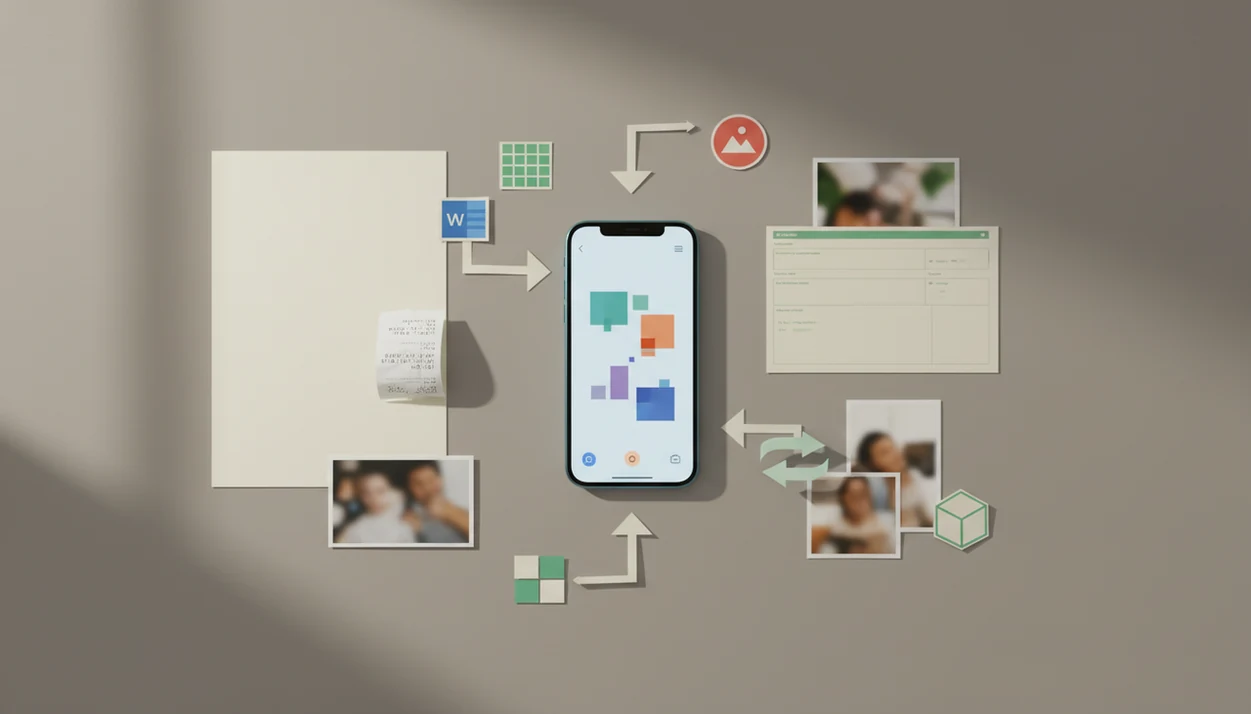
A pdf converter app no computer workflow lets you receive, convert, edit, compress, and send PDF files directly from your phone instead of waiting for a desktop. The fastest setup is a phone PDF converter that handles PDF to Word, Excel, images, OCR, merge, split, compress, and sharing in one mobile PDF workflow.
> Definition: A pdf converter app no computer workflow is a phone-only process for converting PDFs to Word, Excel, images, and other formats, then reviewing and sharing the result without a desktop.
TL;DR
- You can convert PDF without computer access if your app supports common formats like Word, Excel, PowerPoint, images, and text.
- A complete mobile PDF workflow should include viewing, conversion, OCR, merge, split, compression, and sharing.
- AI can improve scanned-file and table conversion, but poor scans, unusual fonts, and complex layouts still need proofreading.
What a PDF Converter App No Computer Workflow Means
A PDF converter app no computer workflow means handling PDF tasks entirely from a phone. You open a file, choose the needed output, review the result, and send it back without moving to a laptop.
The trigger is usually ordinary and urgent. A school form lands in Gmail. An invoice needs table edits. A contract called `LeaseAddendumFinal.pdf` must become a Word file before lunch. Sometimes it is a scanned packet with tilted text and gray shadows near the spine.
A useful phone workflow supports PDF to Word, Excel, PowerPoint, images, and text. It should also create PDFs from photos, documents, and other files. Smartphone ownership makes this practical, not niche. In 2023, Pew Research Center reported that 90% of U.S. adults owned a smartphone, making phone-first document workflows mainstream: https://www.pewresearch.org/internet/fact-sheet/mobile/
For many users, a phone PDF converter is faster than waiting for desktop access because the file is already in email, chat, Files, or cloud storage.
Five Facts About Mobile PDF Workflow Without a Desktop
- A mobile PDF converter should convert both into and out of PDF, including Word, Excel, PowerPoint, images, and text.
- A complete workflow includes view, convert, merge, split, compress, OCR, and share tools, not conversion alone.
- AI can improve layout, table, and scanned text recognition, but it cannot guarantee exact formatting.
- Privacy depends on whether the file is processed on-device or uploaded to cloud servers.
- Offline support matters, but large scans, image-heavy reports, and batch jobs may still need cloud processing or a stable connection.
The share sheet gets crowded fast.
Good AI PDF converter apps for converting PDFs to Word, Excel, images, and other formats plus merge, split, and compress tools deliver faster mobile document handling, not guaranteed perfect replicas of every original file. If you are comparing feature sets, a best pdf converter app guide should separate format support from real editing quality.
How a Phone PDF Converter Works Behind the Scenes
A phone PDF converter works by importing the file, parsing its page structure, then rebuilding the content into another format. The app may read text layers, embedded images, fonts, tables, form fields, and page coordinates before exporting a Word, Excel, image, text, or compressed PDF file.
Files can come from the iOS Files app, Android storage, Gmail, Outlook, a browser download, a camera scan, WhatsApp, Slack, iCloud Drive, Google Drive, OneDrive, or Dropbox. After import, OCR tries to create a text layer for scanned PDFs. In plain terms, it looks at the picture of text and guesses the characters. AI-assisted layout detection can help with tables, columns, receipts, and forms.
On-device processing keeps more work on your phone, which can help privacy and offline use. Cloud processing may handle larger files better, but it depends on internet access and sends data outside the device. Battery and storage matter too. A large compression job can trigger a phone storage warning before it finishes.
Before You Start: Check the File and Output Need
Before you import the PDF, identify what kind of file you have and what result you actually need. This quick check prevents the common phone-only problems: wrong format, failed OCR, privacy risk, or a conversion that stalls halfway through.
- Inspect the PDF type before converting. Look for selectable text, scanned pages, password prompts, heavy images, tables, forms, or sideways camera pages. A text-based contract behaves differently from a photographed receipt packet.
- Choose the output first instead of guessing inside the app. Use Word when you need editable paragraphs, Excel when the main value is a table, image when a portal needs JPG or PNG, text when you only need extraction, and compression when file size is the blocker.
- Check the sensitivity of the document. Legal letters, medical records, bank statements, tax forms, payroll files, and signed contracts may require on-device processing or clearer cloud-handling settings before upload.
- Prepare the phone for the job. Charge the battery, confirm enough storage for both the original and converted copy, and use a reliable network if OCR, cloud conversion, or large compression is involved.
How to Use a PDF Converter App No Computer Needed
Use a PDF converter app no computer needed workflow when the file is already on your phone and the next step is obvious: edit, extract, compress, or send. The safest habit is to check the source document first, then review the converted copy before sharing.
- Import the PDF from email, Files, chat, cloud storage, browser downloads, or a camera scan.
- Choose the output format such as Word for editing, Excel for tables, image for uploads, text for extraction, or compressed PDF for sharing.
- Enable OCR or AI layout recognition for scans, tables, forms, receipts, or complex pages.
- Review the output for missing text, shifted columns, broken line breaks, and changed page order.
- Share, save, or sync the final file to local storage, iCloud Drive, Google Drive, OneDrive, Dropbox, email, or a messaging app.
Tools like PDF Converter AI App, Adobe Acrobat, and Smallpdf can fit this workflow, but the right choice depends on file size, privacy needs, and formats.
Step 1: Convert PDF Without Computer Access From Email or Chat
“Can I convert PDF without computer access from an email or chat?” Yes. Open the attachment in Gmail, Outlook, Messages, WhatsApp, Slack, or another mobile app, then use Share, Open In, or the app menu to send it into your PDF converter.
The exact button name changes by phone. On iPhone, the share sheet may be packed with app icons, so you might need to scroll. On Android, the file may open from Downloads, Google Drive, or the chat app preview first. Once the PDF is inside the converter, choose Word for editable text, Excel for tables, image for screenshot-style uploads, or text for quick extraction.
McKinsey estimated that knowledge workers spend 28% of the workweek reading and answering email, which helps explain why attachment workflows need to be fast: https://www.mckinsey.com/capabilities/mckinsey-digital/our-insights/the-social-economy When the red “attachment too large” banner appears in Gmail or Outlook, conversion and compression become part of the same task.
Step 2: Build a Mobile PDF Workflow for Forms, Scans, and Tables
A mobile PDF workflow should change based on the file type. Scanned contracts, photographed receipts, paper forms, and image-only PDFs need OCR before the text can be searched, copied, or edited.
Use Excel conversion for tables, invoices, reports, vendor lists, and data sheets. A vendor spreadsheet extracted from PDF can save time, but totals and merged cells still need checking. Use Word conversion for letters, contracts, applications, policy pages, and text-heavy documents. If the file is mostly paragraphs, DOCX usually gives you the most editable result.
Proofreading is not optional. Check numbers, table columns, handwriting, signatures, currency symbols, page headers, and unusual characters. OCR can mistake a “0” for an “O” or split one table cell into two. For scanned class readings like `biology-reading-week-4.pdf`, copy the OCR text into notes only after checking headings and citations.
For scan-heavy work, an ai pdf converter app can be useful because OCR and layout recognition matter more than basic export buttons.
Step 3: Compress, Merge, Split, and Send Mobile PDF Files
A no-computer PDF workflow often continues after conversion. You may need to compress a file for an upload portal, school site, government form, email system, or client message before it will send.
Compress first when size is the blocker. Merge when several photos, scans, or PDFs belong in one packet. Split when only pages 3 through 7 should go to the recipient. That last step matters with real estate packets, medical intake forms, and school documents because oversharing pages is easy on a phone.
A counteroffer PDF sent from a driveway is not unusual anymore.
Save the finished file where you can find it later: local phone storage, iCloud Drive, Google Drive, Dropbox, email, or a messaging app thread. If your main job is shrinking files before upload, compare limits in a free pdf converter app before depending on it for large packets.
Common Mobile PDF Conversion Mistakes
The most common mobile PDF conversion mistakes happen when the file is converted too quickly and sent without a second look. A phone can finish the task fast, but scans, tables, compression, and cloud upload settings still need attention.
- Turn on OCR when the PDF is a scan or camera photo. If you skip it, the page may look fine but behave like an image, so text cannot be copied, searched, or edited.
- Review the converted file before sending it. Check tables, totals, headers, footers, signatures, page order, and any page that rotated or split during import.
- Avoid extreme compression for signed forms, stamped documents, receipts, IDs, and small-print pages. A smaller file is not helpful if the signature, seal, or fine text becomes unreadable.
- Check cloud handling settings before uploading confidential files. Payroll, tax, legal, medical, and bank documents deserve a quick look at retention, deletion, and processing options.
- Choose Excel for data-heavy tables instead of Word when rows, columns, totals, and sorting matter more than paragraph editing.
Phone PDF Converter Privacy: On-Device vs Cloud Conversion
Phone PDF converter privacy depends mainly on where processing happens. On-device conversion keeps the work on your phone, while cloud conversion uploads the file to remote servers for processing.
| Factor | On-device conversion | Cloud conversion |
|---|---|---|
| Privacy | Less data transfer outside the phone | More data-transfer considerations |
| Speed | Fast for small files, slower for heavy scans | Often faster for large or complex files |
| Offline access | Can work without internet | Usually needs a connection |
| File-size handling | Limited by phone storage and memory | Better for large image-heavy PDFs |
| Battery use | Can drain battery during OCR or compression | Uses less local processing, more network |
| Conversion accuracy | Good for simple files | May improve tables, OCR, and complex layouts |
Avoid public Wi-Fi for confidential files unless encryption and data-handling policies are clear. Cloud conversion may improve large packets, but it also creates more questions about upload, storage, retention, and deletion. If you use PDF Converter AI App or any other converter for sensitive files, read the processing settings before importing payroll, tax, legal, or medical documents.
Limitations
Mobile PDF conversion is practical, but it has real limits. The original file versus converted copy should always be checked before you rely on it.
- No mobile or desktop converter guarantees exact formatting for every PDF.
- Complex layouts, unusual fonts, multi-column pages, charts, and heavy graphics can convert imperfectly.
- Poor scans, handwriting, shadows, tilted pages, and low-resolution images can reduce OCR accuracy.
- Very large or image-heavy files can be slow, fail offline, drain battery, or require cloud processing.
- Cloud conversion can create privacy concerns for confidential documents if policies are unclear.
- Free plans may limit file size, batch conversion, compression volume, OCR, or storage integrations.
- Password-protected PDFs may need the correct password before conversion, splitting, merging, or compression.
- Some converted Word files look editable but still need manual cleanup around headers, footers, and tables.
For iPhone-specific file locations and sharing behavior, the pdf converter app for iphone guide covers the mobile details more closely.
FAQ
Can I convert a PDF without a computer?
Yes. Import the PDF from email, Files, chat, cloud storage, or a scan, choose an output format, review the result, and share or save the converted file from your phone.
What app can convert a PDF on my phone?
Look for a phone PDF converter that supports Word, Excel, images, text, OCR, merge, split, compression, and cloud storage. PDF Converter AI App is one option, but compare file-size limits and privacy settings before choosing.
Can phones convert PDF to Word?
Yes, many mobile apps can convert PDF to Word. Formatting may change if the PDF uses unusual fonts, columns, tables, images, or scanned text.
Can scanned PDFs become editable on a phone?
Yes, scanned PDFs can become editable if the app uses OCR to recognize text. Clear scans work best, while handwriting, shadows, and low resolution can reduce accuracy.
Is mobile PDF conversion safe?
Mobile PDF conversion can be safe when the app uses clear encryption, sensible file handling, and on-device processing when needed. Be careful with confidential files if cloud processing or public Wi-Fi is involved.
Can PDF conversion work offline?
Some apps support offline conversion for simple files. Large scans, OCR jobs, batch conversion, and complex layouts may still need internet access or cloud processing.
Why did my PDF formatting change after conversion?
PDF formatting can change because fonts, tables, columns, images, form fields, and scanned pages do not always translate cleanly into Word or Excel. Review the converted copy before sending it.
Can I compress a PDF on my phone?
Yes, many mobile PDF apps can compress files for email, uploads, portals, and file-size limits. Compression may reduce image quality, so check readability before sharing.