
PDF Converter App Permissions To Check Before Installing
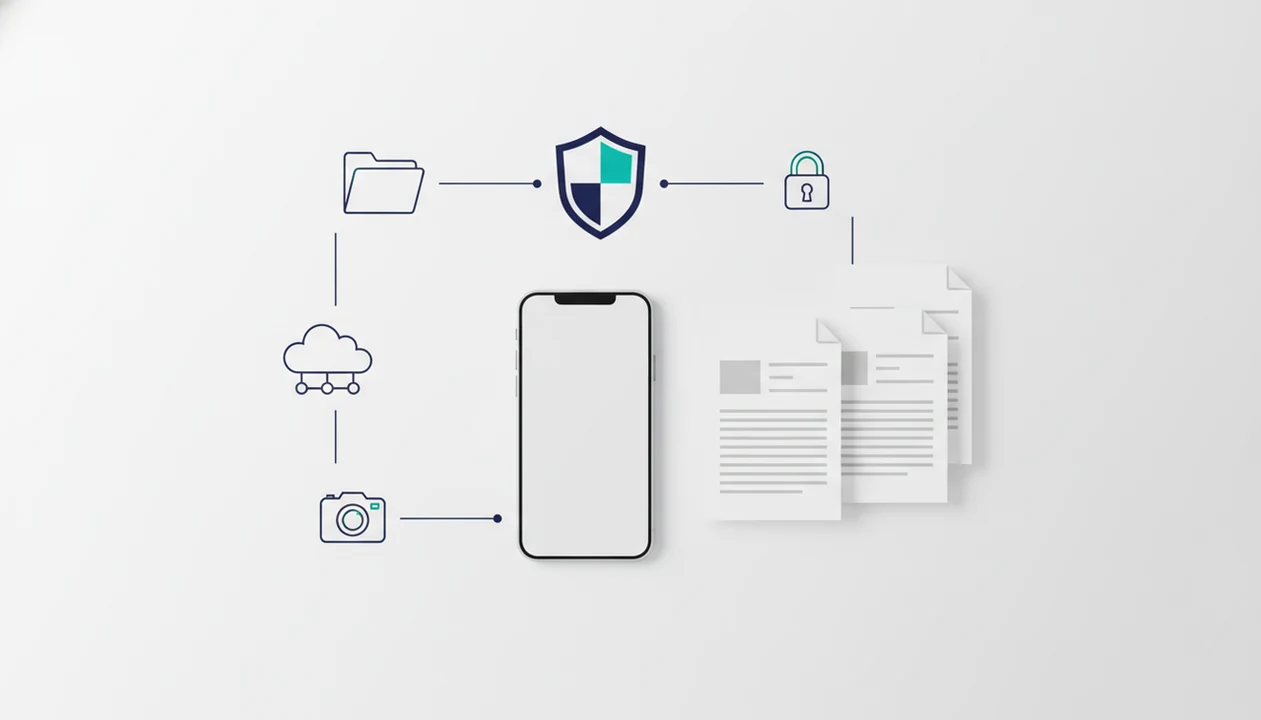
PDF converter app permissions are normal when they match the feature you are using, such as file access for conversion, camera access for scanning, or network access for cloud OCR. The safest approach is to check both the app privacy labels or data safety section and the in-app permission prompts before opening sensitive documents.
This guide explains how to evaluate PDF converter app permissions before installing or uploading sensitive files; it is not a security audit, legal advice, or a guarantee that any specific app is safe for confidential documents.
- Storage, files, photos, camera, network, and cloud permissions can be legitimate when they connect directly to PDF conversion, scanning, OCR, merge, split, or compression features.
- App privacy labels and data safety sections describe developer-reported data practices, while permission prompts control what the app can access on your device at runtime.
- Before installing any PDF converter app, review what data is collected, whether files are uploaded, how long documents are retained, and whether your PDFs are used for AI training or third-party sharing.
What PDF converter app permissions actually cover
PDF converter app permissions are device-level access requests that let an app reach files, photos, camera, storage, network connections, or cloud sources for a specific document task. They are not automatically unsafe, but they should fit the feature you just tapped.
File or storage access can be needed for PDF to Word, PDF to Excel, merge, split, compression, and saving an editable Word file. Photos access fits image conversion or receipt photos turned into one file. Camera access fits scan-to-PDF. Network access may support cloud OCR or account login.
Grant the smallest useful access. If iOS Files lets you pick only `LeaseAddendumFinal.pdf`, that is usually better than opening a whole library.
Five facts about app privacy labels and PDF permissions
- PDF apps may need storage, files, photos, or cloud access to open and save user-selected PDFs, Word files, Excel sheets, and image exports.
- App privacy labels and data safety sections are not the same as runtime permission prompts.
- Store labels summarize collection and sharing practices, while prompts control local access at the moment of use.
- Denying storage or camera permissions can break scan, OCR, import, export, or batch conversion features.
- Trustworthy apps explain file retention, third-party sharing, analytics, error logs, and whether documents train AI models.
A 2022 iOS user study found that about 20% of participants confused privacy labels with permission prompts (SOUPS 2022). Separate privacy-label research found that more than half of surveyed users misread at least one label element (Proceedings on Privacy Enhancing Technologies). That matches what we see in support screenshots: people often remember the pop-up, not the store label.
How PDF converter app permissions work on iOS and Android
PDF converter permissions usually work through just-in-time prompts. The app installs first, then asks when it tries to open Files, Photos, Camera, or another protected area.
Store labels are different. They are developer-reported disclosures about data collection, sharing, and use, not live switches for device access. Runtime prompts decide whether the app can touch a local file, camera feed, or photo picker in that moment.
The processing path matters. Local processing keeps conversion on the device. Cloud upload sends the file to a server. Server-side AI processing may analyze OCR text layers, tables, or layout structure remotely. A scanned page with gray shadows near the spine may need stronger OCR, but that can mean more processing beyond the phone.
Good AI PDF converter apps deliver Word, Excel, image, merge, split, and compress tools, not a guarantee that every private document stays risk-free.
PDF app storage permission mapped to real converter features
PDF app storage permission is reasonable when it supports opening, converting, exporting, or saving documents you choose. It deserves scrutiny when it reaches unrelated data or asks before any file task begins.
| Permission or access | Reasonable PDF converter use | Needs extra scrutiny when |
|---|---|---|
| Storage or files | Open PDFs, save DOCX, XLSX, JPG, PNG, or compressed copies | It asks for broad access before file selection |
| Photos | Import screenshots, convert images to PDF, export PDF pages as images | It requests the full photo library without explanation |
| Camera | Scan paper pages and create PDFs | No scanning feature exists |
| Cloud drive | Import from iCloud Drive, Google Drive, Dropbox, or OneDrive | It connects cloud accounts without a clear save or import step |
| Network | Online conversion, OCR, sync, login, billing, crash logs, analytics | It uploads files without saying why |
| Contacts, location, microphone, calendar | Usually unnecessary for basic conversion | No feature-based reason is given |
For higher-risk workflows, compare the offline vs cloud pdf converter tradeoff before uploading.
Data safety PDF app checks before installing
“What should I check in a PDF app data safety section before installing?” Check data collected, data shared, collection purpose, encryption in transit, deletion options, and whether an account is required.
Labels help, but they are self-reported by developers. They are not a full privacy audit. Open the privacy policy and search for retention, third parties, subprocessors, AI training, machine learning, OCR, analytics, and crash reporting.
Pew Research Center reported that 81% of Americans feel they have very little or no control over data companies collect about them, and 79% are concerned about how companies use collected data (Pew Research Center). That concern is reasonable when a converter handles contracts, tax records, IDs, or medical paperwork.
For sensitive uploads, the is it safe to upload pdf to converter question deserves a separate check.
Permission guarantees to expect from a PDF converter app
A PDF converter app should request permissions only when a feature needs them, such as file import, export, scanning, OCR, merge, split, or compression. A permission prompt should connect to the action the user just started.
Plain wording matters. If a user taps scan, camera access is understandable. If a user taps compress and sees a phone storage warning during a large PDF compression job, the app should explain what is being read, created, and saved.
The app should support least-privilege use where the operating system allows it, including selecting individual files instead of broad library access. Its privacy policy should cover analytics, error logs, server-side processing, file retention, third-party processors, and AI model training.
These are commitments to clarity, not claims of absolute privacy. App store review does not guarantee that every document workflow is safe.
What app privacy labels do not cover
App privacy labels do not show every contextual risk of uploading a sensitive PDF to a cloud conversion service. A short label cannot fully explain whether a counteroffer PDF sent from a driveway is stored, reviewed, backed up, or routed through subprocessors.
A label saying data is not collected also does not mean the app needs no local permissions. The app may still need file access to open `biology-reading-week-4.pdf` and export a converted copy.
Permissions have gaps too. They do not always reveal retention periods, human review, analytics, crash logs, AI training, or downstream vendors. Usability research has found that people often rely on prompts more than labels when deciding whether to share data.
One more catch: turning off a permission later does not pull back files already uploaded to a cloud service. For deletion questions, use a pdf converter file deletion check.
How to contact support about PDF app permissions
Contact support before uploading sensitive documents if a permission request, app privacy label, or privacy policy is unclear. Clear answers are a trust signal. Vague replies are a reason to avoid using the app for confidential files.
- Permission reason: Ask, “Why is this permission needed for the feature I’m using?”
- Processing location: Ask whether conversion, OCR, and layout analysis run on-device or server-side.
- File retention: Ask how long uploaded PDFs and converted copies are stored.
- AI training: Ask whether PDFs, OCR text, or extracted tables are used to train models.
- Third parties: Ask which vendors or subprocessors handle files, analytics, billing, or crash reports.
Include device type, operating system, app version, feature used, and a screenshot of the permission prompt. A thumbnail grid showing crooked scans can also help support explain OCR or camera requests.
When to use a stricter document workflow
Use a stricter document workflow when the file could create legal, medical, financial, identity, employment, or client harm if it were uploaded, retained, or shared incorrectly. In those cases, permission checks are not enough; the workflow itself needs approval.
- Pause before uploading contracts, subpoenas, settlements, attorney-client materials, or anything marked privileged, and get legal review when the document belongs in a controlled legal process.
- Choose medical-compliant handling for patient records, lab results, insurance forms, diagnoses, prescriptions, or provider correspondence instead of a general-purpose converter.
- Use identity-safe or tax-approved tools for returns, W-2s, passports, driver’s licenses, bank statements, and other files that combine names, numbers, addresses, and signatures.
- Ask the owner of the document before converting confidential business files, especially employer records, client decks, acquisition materials, payroll exports, or internal strategy PDFs.
- Switch to offline or enterprise-approved software when a company policy, contract, school rule, regulator, or professional duty requires local processing, audit controls, approved vendors, or restricted storage.
If the safer path feels slower, that is the point. Sensitive documents often need a defensible process, not just a convenient export button.
Sources used for PDF app permission guidance
This guidance is based on platform documentation, consumer-protection principles, and privacy-comprehension research. It should help users separate evidence-based permission checks from general “be careful online” advice.
For iPhone and iPad, Apple explains that App Privacy details and permission prompts serve different jobs: labels describe data practices, while prompts ask for access to protected device areas such as files, photos, or camera. For Android, Google Play’s Data Safety section and Android permission docs describe similar disclosure and runtime-access concepts. The FTC’s privacy guidance is useful because it focuses on clear, non-misleading disclosures rather than fine print. Pew and academic privacy studies add the practical point: many people misunderstand privacy notices even when the notice is visible.
Use those sources in this order:
- Check the Apple or Google store label before installing.
- Compare the label with the permission prompt that appears during the actual PDF task.
- Read the privacy policy for retention, sharing, deletion, AI training, and subprocessors.
- Treat labels as developer-reported statements, not independent audits.
- Escalate sensitive files to a stricter workflow when the answers are incomplete.
Limitations
- App privacy labels and data safety sections are self-reported by developers and are not a complete technical audit.
- Users can misunderstand labels, permission prompts, or the difference between local and server-side processing.
- Restricting storage, photos, camera, or cloud access can disable PDF conversion, scanning, OCR, merge, split, or compression features.
- Uploaded PDFs may remain subject to a provider’s server-side retention, deletion, backup, and subprocessors even if local permissions are later turned off.
- Operating system permissions cannot fully reveal whether a service uses analytics, crash logs, human review, AI training, or downstream vendors.
- No mobile app permission system can make highly sensitive documents risk-free; legal, medical, tax, identity, or confidential business files may require stricter workflows.
- Free tools may add extra risk if the privacy policy is vague, which is why free pdf converter security checks matter.
FAQ
Are PDF app permissions safe?
PDF app permissions can be safe when they match the feature being used, such as storage for opening files or camera access for scanning. Users should still review privacy labels, data safety details, and the privacy policy.
Why do PDF apps need storage?
Storage or file access lets a PDF app open selected PDFs and save converted documents. Without it, PDF to Word, PDF to Excel, export, merge, and compression features may fail.
Why does a PDF app need camera access?
Camera access is usually used for scanning paper documents and creating PDFs from captured pages. If the app has no scan feature, the request needs a clear explanation.
Can I deny PDF app permissions?
Yes, you can deny permissions through iOS or Android settings. Some features, including scan, import, export, OCR, and batch conversion, may stop working.
Are privacy labels the same as permission prompts?
No. Privacy labels disclose developer-reported data practices, while permission prompts control device access at the moment the app requests it.
What is data safety in mobile apps?
Data safety is an app store disclosure about what data an app collects, shares, protects, and lets users delete. Before installing a PDF converter, check collection purposes, sharing, encryption in transit, and deletion options.
Do PDF converters upload my files?
Some PDF converters process files locally, while others upload files for OCR, AI conversion, sync, or cloud processing. PDF Converter AI App users should check the relevant privacy policy section for server-side processing and retention details.
Should a PDF app access my contacts?
Contacts access is usually unnecessary for basic PDF conversion. It may be reasonable only if a clearly explained sharing feature requires it.