
Benefits Of PDF Converter App Workflows On A Phone
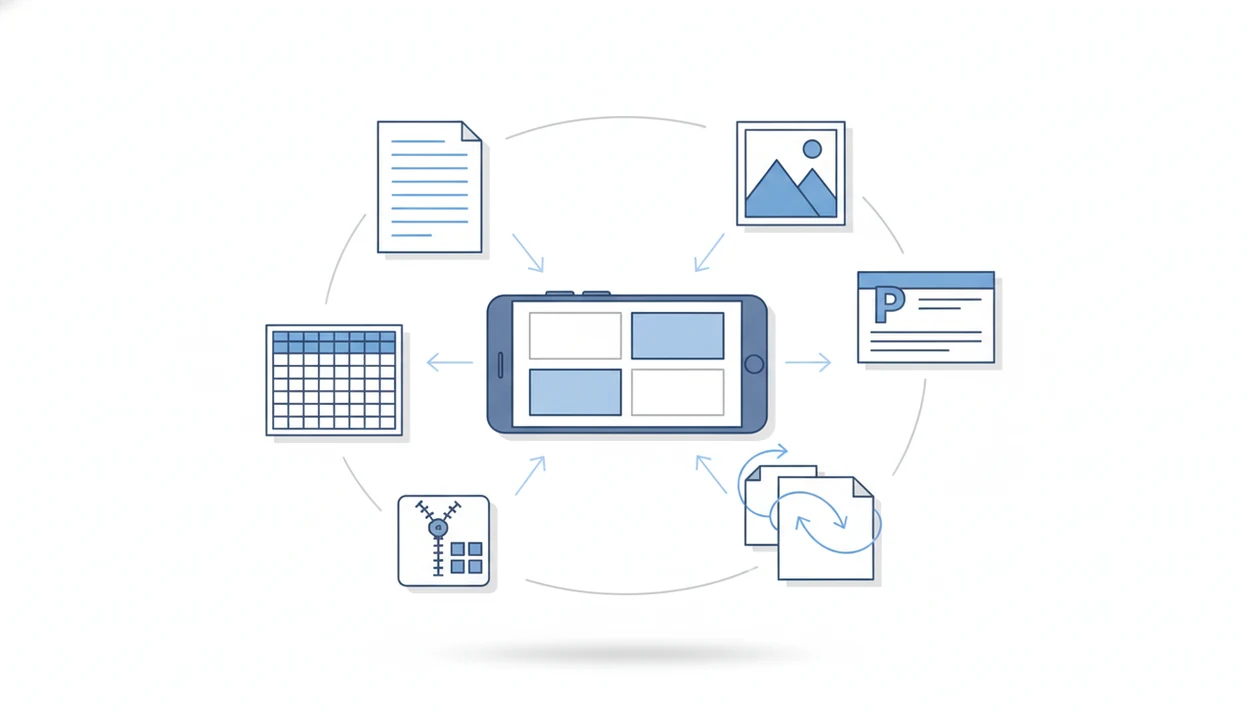
The benefits of pdf converter app workflows are faster edits, easier file sharing, searchable scanned documents, smaller attachments, and cleaner document packets from a phone. A mobile converter is most useful when a PDF needs to become editable, compressed, merged, split, or sent in a format someone else requested.
Definition: PDF Converter AI App is a pdf converter app that converts PDFs to Word, Excel, images, and other formats for people who need fast document tools on their phone.
TL;DR
- A mobile PDF converter app helps turn PDFs into editable Word, Excel, image, TXT, PPT, and other file types.
- The biggest everyday gains are less retyping, faster sharing, searchable OCR text, and one-app cleanup with merge, split, and compress tools.
- Conversion quality still depends on the source PDF, so complex layouts, scanned pages, and tables should be reviewed before sending.
PDF Converter App Benefits For Everyday Phone Tasks
A PDF converter app helps you edit text, extract tables, convert images, compress files, merge packets, and share documents in the format someone requested. The clearest pdf app benefits show up when a resume, school file, receipt, form, invoice, or client document lands on your phone and needs action now.
Adobe describes PDF conversion as a core Acrobat workflow for moving between PDF, Word, Excel, PowerPoint, and image formats, used by millions of people worldwide source. That matters because PDF work is not rare office cleanup. It is the red “attachment too large” banner in Gmail, the invoice PDF compressed before emailing, and the quick question: why use pdf converter instead of waiting for a laptop?
For everyday users, converting a clean PDF to Word is often faster than retyping because it preserves usable text while leaving only targeted edits to review.
Mobile PDF Converter App File Types
A PDF converter app changes a PDF into formats such as Word, Excel, JPG, PNG, TXT, PowerPoint, HTML, or back into PDF after editing. It acts as a bridge between formats, not as a full replacement for a word processor, spreadsheet app, or presentation tool.
Word output fits text edits, like fixing a date in `LeaseAddendumFinal.pdf`. Excel output fits tables, totals, and rows that should not be copied cell by cell. JPG and PNG help when a page needs to become an image. TXT is useful when you only need plain text from a policy, reading packet, or note.
A mobile converter fits this document workflow when the file starts in email, chat, iCloud Drive, Google Drive, OneDrive, or the iOS Files app. The practical goal is simple: get the original file into a workable format, then check the converted copy before sending.
Before You Use A PDF Converter App
Before you use a PDF converter app, make sure the source file is readable, allowed to open, and worth converting. A quick check prevents wasted exports, broken formatting, and accidental uploads of private documents.
- Open the PDF on your phone first and confirm that the pages load clearly, without blank screens, missing text, or obvious file damage.
- Identify what kind of PDF you have: a digital file with selectable text, a scanned image that may need OCR, a password-protected document, or a restricted file that may block conversion.
- Choose the target format before you tap convert, such as Word for paragraph edits, Excel for tables, JPG or PNG for page images, or TXT for plain text.
- Decide whether the document is sensitive enough to keep out of cloud processing, especially for legal, financial, medical, school, or client records.
- Save an unchanged copy before you edit, compress, merge, split, or overwrite anything, so the original record stays available if the converted version needs another pass.
This small pause is boring in the best way: it keeps the phone workflow fast without turning the only good copy into the test file.
Five PDF App Benefits Readers Should Know
- Editable output reduces retyping. Converting a PDF to Word or Excel can turn locked-looking content into text or tables you can revise.
- Multiple output types support different jobs. Word, Excel, JPG, PNG, TXT, PowerPoint, and HTML each solve a different reuse problem.
- OCR makes scans searchable. A scanned PDF can gain an OCR text layer, so you can search, copy, or export recognized text.
- Cleanup tools reduce app switching. Merge, split, compress, rotate, and reorder tools help prepare one cleaner packet before sharing.
- Review is still required. Complex layouts, charts, columns, and scanned pages can convert unevenly, so the final file needs a check.
A good ai pdf converter app for converting pdfs to word, excel, images, and other formats plus merge split and compress tools delivers faster file preparation, not guaranteed error-free conversion.
The pocket check is real.
PDF Converter App Workflow Mechanics
A PDF converter app works by reading the PDF structure, extracting available text, detecting images and tables, and mapping that content into a new file format. If the PDF was created from a Word document, the text layer may already be available. If it came from a scanner, the app has to interpret pixels.
OCR, or optical character recognition, handles scanned and image-based PDFs. The app may preprocess the image, sharpen contrast, straighten tilted lines, recognize characters, and place an editable or searchable text layer over the page. A scan with gray shadows near the spine and tilted text will usually need more review than a clean digital invoice.
Merge, split, and compress are different operations. They change document structure or file size, not the meaning of the content. AI-assisted conversion can improve recognition and layout guesses, but it does not truly understand every contract clause, chart, or handwritten note.
Six Steps To Use A PDF Converter App On A Phone
- Select the PDF from email, chat, cloud storage, camera scan, or your phone’s file picker.
- Choose the output type, such as Word for edits, Excel for tables, JPG or PNG for images, or TXT for plain text.
- Enable OCR when the PDF is scanned, photographed, or image-based rather than digitally generated.
- Review the converted file for formatting, missing characters, broken tables, and shifted page elements.
- Compress or merge the file if you need a smaller attachment or one combined document packet.
- Share or export the finished copy to email, cloud storage, messaging, or another app.
Phone workflows are quick, but the last review step is not optional. We have seen a blue progress bar finish cleanly, then a two-column handout opens with one paragraph in the wrong order.
If Word is the target format, a dedicated download pdf to word app workflow can be easier than choosing from every export type at once.
Common PDF Converter App Mistakes To Avoid
The most common PDF converter app mistakes happen when a fast export gets treated as a finished file. Avoiding them is mostly about choosing the right setting, then checking the parts most likely to break.
- Turn on OCR for any scan, camera photo, faxed page, or image-based PDF. If the text cannot be selected in the original, the app may need OCR before Word, TXT, or search results become useful.
- Compare converted tables against the source before trusting totals, dates, quantities, or invoice lines. A neat-looking Excel export can still split rows, drop symbols, or move a number into the wrong column.
- Use light compression when small text, stamps, signatures, charts, or ID details must stay readable. A tiny file is not a win if the recipient cannot read the bottom line.
- Check page order after merging files from email, cloud folders, scans, and screenshots. Mixed sources are where duplicate cover pages and backward inserts sneak in.
- Review app permissions and upload behavior before processing private legal, financial, medical, school, or client files.
A two-minute review usually costs less than resending a broken packet.
Mobile Document Workflow Gains From Convert, Merge, Split, And Compress
How do convert, merge, split, compress, OCR, and share tools work together in one mobile document workflow? They let you turn a messy set of files into one usable package without moving back and forth between desktop software, browser tools, and email attachments.
A reimbursement task might start with five receipt PDFs, then become one merged file. A contract packet might need one page split out before signing. A large scan might need compression before Outlook accepts it. A table inside a vendor PDF might need Excel export so totals can be checked.
The U.S. Government Publishing Office reported producing and distributing more than 120 million pages of publications in a recent year, which shows that document handling remains a large operational task even in digital systems source. On a smaller scale, the same logic applies at a shop counter covered with forms. One organized file beats six scattered attachments.
For multi-file packets, a focused merge pdf app workflow usually works best when the main problem is document order, not text editing.
PDF Converter Tools Versus Manual Retyping
Why use pdf converter tools instead of manual retyping? A converter can create editable output, extract tables, add OCR search, and match the file format another person requested, while manual copying often loses structure and takes longer.
The difference is most obvious on a phone. A PDF arrives in Gmail, Slack, Messages, Google Drive, or OneDrive, and the work can start immediately. You do not have to wait until you are near a desktop just to pull one table into Excel or correct a line in a DOCX export. According to Pew Research Center, 93% of U.S. adults use the internet, which helps explain why mobile-accessible document workflows matter for ordinary file tasks source.
Manual retyping still has a place for short, sensitive, or badly scanned files. But for a readable source PDF, conversion usually works best when you need structure preserved and only want to clean up the converted copy.
PDF Converter App Output Types Compared
Different output types solve different document problems, and more choices do not automatically mean better quality. Pick the format that matches the next task, then check the parts most likely to shift.
| Output type | Best use | What to check |
|---|---|---|
| Word | Editing paragraphs, resumes, letters, and forms | Fonts, spacing, headers, columns |
| Excel | Reusing tables, totals, lists, and line items | Merged cells, row breaks, formulas |
| JPG or PNG | Saving pages as images for visual reuse | Resolution, cropping, image clarity |
| TXT | Extracting plain text without layout | Missing symbols, line breaks, order |
| PowerPoint | Reusing slide-like pages or visual layouts | Charts, alignment, image placement |
| Compressed PDF | Sending or uploading a smaller file | Image quality, readability, file-size limit |
A tablet stylus tapping dense formulas is a good reminder: tables and charts need eyes on them after conversion. For spreadsheet-first work, an excel to pdf converter app can help when the direction runs from sheet to final PDF instead.
Best Everyday Tasks For PDF Converter App Benefits
Resume Edits: Converting a resume PDF to Word can make small changes faster, especially when the original DOCX is missing. Check line spacing before sending it to an employer.
Invoice Tables: PDF to Excel conversion helps pull item rows, totals, and dates into a spreadsheet. It is useful, but totals should be checked against the original file.
Receipt Packets: Merge and compress tools can turn scattered receipts into one reimbursement PDF. The tiny trash icon beside old exports becomes satisfying after the final packet is saved.
School Handouts: OCR can make `biology-reading-week-4.pdf` searchable, which helps when a student needs one definition from a long scan. For camera-based capture, a photo to pdf scanner app may be the better starting point.
Scanned Forms: OCR and Word export can help reuse typed fields, but handwriting and checkboxes often need manual correction.
Limitations
PDF converter apps are useful, but they are not magic file repair tools. Check the source document first, then inspect the converted copy before you rely on it.
- Complex layouts, embedded fonts, multi-column pages, forms, and tables may need manual cleanup after conversion.
- OCR can misread faint text, handwriting, skewed scans, low-resolution images, or pages with shadows near the spine.
- Compression reduces file size, but aggressive settings can lower image quality or make small text harder to read.
- Some AI conversion claims are overstated; recognition may improve, but perfect document understanding is not guaranteed.
- Free apps may limit file size, batch conversion, OCR, export types, daily usage, or cloud storage options.
- Password-protected, damaged, or restricted PDFs may not convert until permissions are resolved.
- Sensitive files require extra care, especially if an app uploads documents to a server for processing.
Not every file deserves conversion. Sometimes the original PDF is the safer record.
FAQ
What is a PDF converter app?
A PDF converter app is a mobile tool that changes PDFs into editable or shareable formats such as Word, Excel, images, TXT, or PowerPoint. Many mobile converter apps also include merge, split, compress, and OCR tools.
Why use a PDF converter instead of retyping?
A PDF converter reduces manual retyping by extracting text, tables, or scanned OCR text into a usable format. It also helps match the format someone requested before you share the file.
Can I convert a PDF to Word on my phone?
Yes, many iPhone and Android PDF apps can convert a PDF to Word. Formatting may need review, especially with columns, forms, unusual fonts, or scanned pages.
Can I convert a PDF table to Excel?
Yes, table-based PDFs can often be converted to Excel. Complex tables, merged cells, and scanned tables may need cleanup after export.
Does OCR work on scanned PDFs?
OCR can extract text from scanned PDFs and make the file searchable or editable. Accuracy depends on scan clarity, resolution, contrast, page angle, and handwriting quality.
Are PDF converter apps safe for private documents?
Safety depends on the app’s privacy practices, permissions, storage behavior, and whether files are uploaded for processing. Review those details before using private, legal, financial, or medical documents.
Do free PDF converter apps have limits?
Yes, free PDF converter apps often limit file size, number of conversions, batch tools, OCR access, export formats, or daily usage. Users should check current in-app limits before starting a large file job.