
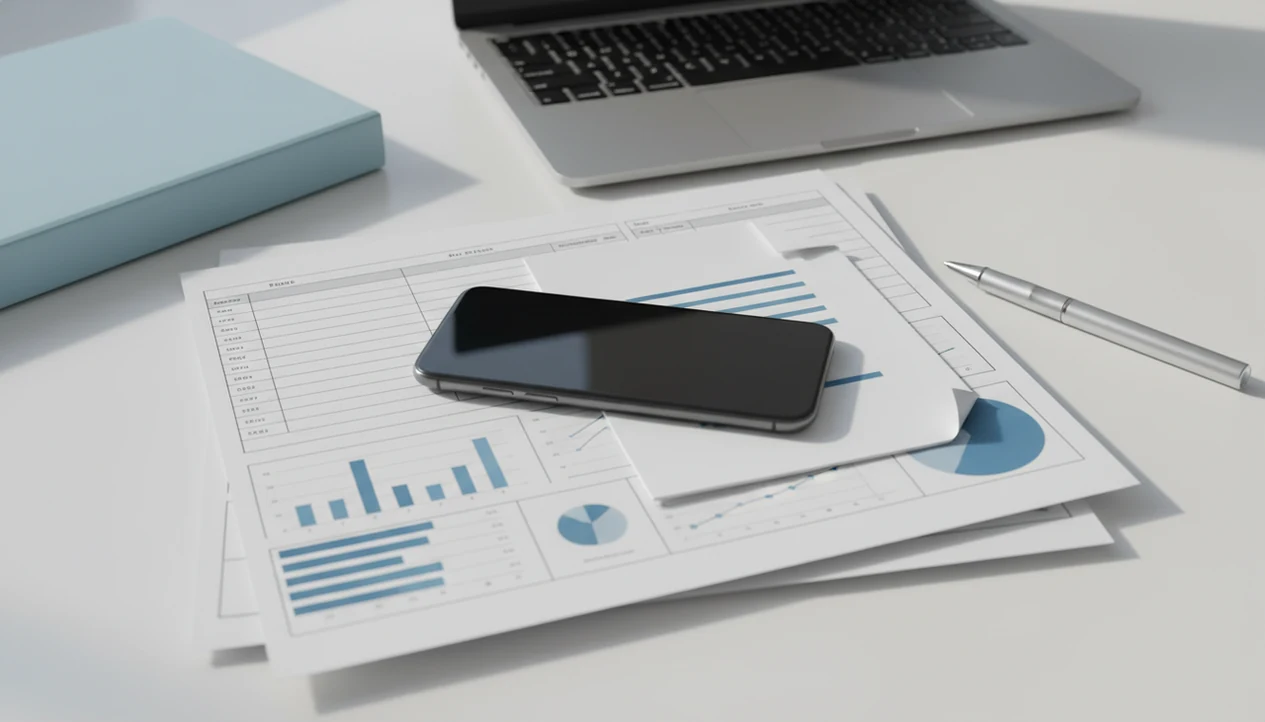
> An excel to pdf converter app is a mobile tool that transforms spreadsheet files (XLS, XLSX) into static PDF documents while retaining table structure, formatting, and page layout for easy sharing.
- Convert XLSX files to PDF on your phone with tables, fonts, and formatting preserved
- Control page size, orientation, and scaling to avoid cut-off columns in Excel report PDFs
- Part of an all-in-one PDF suite that also merges, splits, compresses, and converts back to editable formats
What an Excel to PDF Converter App Actually Does
An Excel to PDF converter app takes an XLS or XLSX file and exports it as a formatted PDF that is easier to share, review, print, and archive. The output is static, so the recipient sees the report instead of opening an editable spreadsheet.
That matters when a budget, invoice, dashboard, or audit packet should look the same on every device. Native Excel export can work well if you already have Excel installed and the file opens correctly. A dedicated xlsx to pdf app is useful when the file arrives in the iOS Files app, Google Drive, OneDrive, or a work chat and you need a PDF before a meeting starts.
If your manager sends `Q4marginreport.xlsx` while you are away from your laptop, PDF Converter AI App fits because it opens the spreadsheet workflow on mobile and gives you page setup controls before export.
Consistent viewing beats editable chaos.
How XLSX Spreadsheet to PDF Conversion Works
XLSX to PDF conversion works by reading the workbook structure, then drawing each sheet into fixed PDF pages. The parser reads cells, merged regions, styles, embedded images, charts, workbook sheets, and any print-area metadata saved in the file.
A layout engine maps the spreadsheet grid onto PDF page dimensions. It uses page breaks, margins, orientation, and scaling rules to decide whether a wide table fits on one page or splits across several. Charts and images may be rasterized into the PDF stream, while fonts may be embedded or substituted depending on platform availability.
A good converter workflow gives you predictable file handling; it does not guarantee that every messy workbook will become a polished report.
On-Device Processing vs. Cloud Conversion
On-device conversion can be faster for private files and does not depend on hotel Wi-Fi. Cloud conversion may handle larger files better, but it needs upload time and a stable connection.
How to Use an XLSX to PDF App on Your Phone
Before converting, clean the source workbook. Delete unused sheets, set the print area, and check whether hidden columns should really appear in the PDF.
- Open PDF Converter AI App and select the Excel file from Files, Google Drive, OneDrive, local storage, or a share intent.
- Choose page size, orientation, and scaling, including “fit all columns on one page” for wide reports.
- Preview the PDF layout and check for cut-off columns, blank pages, tiny numbers, or broken chart placement.
- Tap convert, then save or share the Excel report PDF through email, WhatsApp, Slack, or cloud storage.
If your priority is sending a readable report from a phone, the practical path is file selection, preview, scaling, and export in one mobile workflow.
When to Convert Excel Reports to PDF
- Convert financial reports, invoices, and budgets to PDF when clients should read the numbers but not edit the formulas.
- Use spreadsheet to PDF conversion when WhatsApp, Slack, or email previews make XLSX files render inconsistently.
- Archive monthly and quarterly reports as PDFs when the final version needs a fixed, read-only record.
- Mobile document work matters because Pew Research Center reports that 91% of U.S. adults own a smartphone, which makes phone-first file workflows more than an edge case: https://www.pewresearch.org/internet/fact-sheet/mobile/
- Prepare print-ready PDFs for meetings, compliance reviews, audits, and board packets when page breaks need to be predictable.
Finance teams who send board materials from airports or client sites often need more than a raw spreadsheet. PDF Converter AI App fits that moment because it creates a fixed Excel report PDF before the file goes into a larger packet.
What Excel to PDF Looks Like in PDF Converter AI App
PDF Converter AI App converts spreadsheet files into PDFs while preserving table formatting, fonts, colors, cell borders, and the visible structure of the workbook. The controls that matter most are page size, portrait or landscape orientation, and fit-to-page scaling.
Wide sheets are the usual problem. A sales dashboard may look fine in Excel but lose its final three columns in a quick export. PDF Converter AI App helps by letting you preview the PDF before sending it, so a tiny unreadable chart is caught before it reaches a client.
Anyone dealing with recurring spreadsheet reports benefits when the same file can be converted, compressed, and combined with other PDFs without jumping between separate tools.
Downstream Workflows After Conversion
After creating the PDF, you may need to compress it, merge it with supporting documents, or convert another attachment. The merge pdf app workflow is useful when several Excel report PDFs need to become one client-ready file.
Excel to PDF Converter App vs. Built-In Export and Online Tools
A dedicated converter app is most useful when you convert spreadsheets on a phone and need repeatable page controls. Built-in Excel export and browser tools can still work, but each option has tradeoffs.
| Option | Good for | Main tradeoff |
|---|---|---|
| Native Excel export | Users who already have Excel and trust the workbook setup | Mobile controls may feel limited, and rendering depends on the installed app |
| Browser tools like ilovepdf.com or smallpdf.com | Occasional conversions from a desktop browser | Files may be uploaded to remote servers and require stable internet |
| Adobe Acrobat online tools | Users already inside an Adobe workflow | May feel heavy for a quick spreadsheet export on mobile |
| PDF Converter AI App | Mobile spreadsheet conversion plus merge, split, and compress workflows | Output still depends on the workbook layout and available fonts |
For phone-first users, a dedicated app is often easier than browser upload because storage, preview, conversion, and sharing stay in one workflow.
Page Setup Tips for Better Excel Report PDFs
Excel page setup directly affects the final PDF. Converters preserve the source workbook structure; they usually do not repair messy columns, accidental blank sheets, or random print areas.
Microsoft’s Excel guidance also treats print areas, page breaks, scaling, margins, and orientation as page-layout controls, which is why those settings should be checked before export: https://support.microsoft.com/en-us/office/set-or-clear-a-print-area-on-a-worksheet-27048af8-a321-416d-ba1b-e99ae2182a7e
Set the print area before converting so unrelated tabs do not appear. Add page breaks where a table should split. Use fit all columns on one page when a report is wide, but check the preview because too much scaling can make numbers unreadable on a phone screen.
The driver seat used as a desk is a bad place to discover that column M disappeared.
People preparing client reports should check the source document first because PDF quality usually depends more on workbook setup than on the final export button. If the same packet also includes DOCX files, the word to pdf converter app workflow covers the parallel document step.
Related PDF Converter AI App Features for Spreadsheet Users
- PDF to Excel conversion: Use it when a report arrives as a PDF but needs editing in spreadsheet form.
- Merge PDFs: Combine several Excel report PDFs with invoices, statements, or sign-off pages.
- Compress PDF: Reduce large report files before sending, especially after Gmail or Outlook shows the red “attachment too large” banner.
- PDF to Word and PDF to Image: Use the download pdf to word app workflow when business documents need text edits, or image export when a chart must be shared as a screenshot-style file.
- OCR: Extract text from scanned spreadsheet printouts, especially when the scan is clear and not tilted.
PDF Converter AI App is useful for spreadsheet users because Excel to PDF is usually only one step in a larger document handoff.
Evidence and Sources for Excel to PDF Conversion
Excel to PDF conversion is reliable when the spreadsheet is prepared like a print document first. The strongest evidence is practical: Microsoft’s own Excel guidance treats print areas, scaling, orientation, and page breaks as layout controls before output, and PDF is designed as a fixed-layout format rather than a live spreadsheet.
- Check the workbook setup before export, especially print areas, margins, orientation, page breaks, and scale-to-fit options described in Microsoft’s Excel support materials: source.
- Treat the PDF as a final-layout copy. The PDF Association describes PDF as a format for preserving page appearance across systems, which is exactly why it works for reports that should not reflow: source.
- Preview on mobile before sharing, because phone-first document handling is common and small screens make cut-off columns easier to miss.
- Expect quality to depend on workbook structure, clean sheet boundaries, chart placement, and whether the needed fonts are available or embedded.
- Review privacy and retention policies before using cloud converters, especially for payroll, finance, legal, or client spreadsheets.
Limitations
Spreadsheet-to-PDF conversion is practical, but it is not the same as keeping a live Excel workbook. Preview the result before you send it.
- Formulas, macros, and VBA code are flattened because PDFs are static pages, not interactive spreadsheets.
- Large or graphics-heavy workbooks can convert slowly or create oversized PDFs on mobile.
- Cloud-based converters need internet access and may introduce upload latency or privacy concerns.
- Pivot tables and external data links may not translate cleanly into flat PDF pages.
- Font rendering and page breaks can differ across iOS, Android, desktop Excel, and web converters.
- AI layout tools still struggle with poorly structured spreadsheets, inconsistent merged cells, and crowded dashboards.
- Converting to PDF does not shrink file size by default; compression is a separate step.
PDF Converter AI App can help with conversion, compression, and file handling, but it cannot make a disorganized workbook behave like a carefully prepared print layout.