
Find Editable Text in Scanned PDF Files With OCR
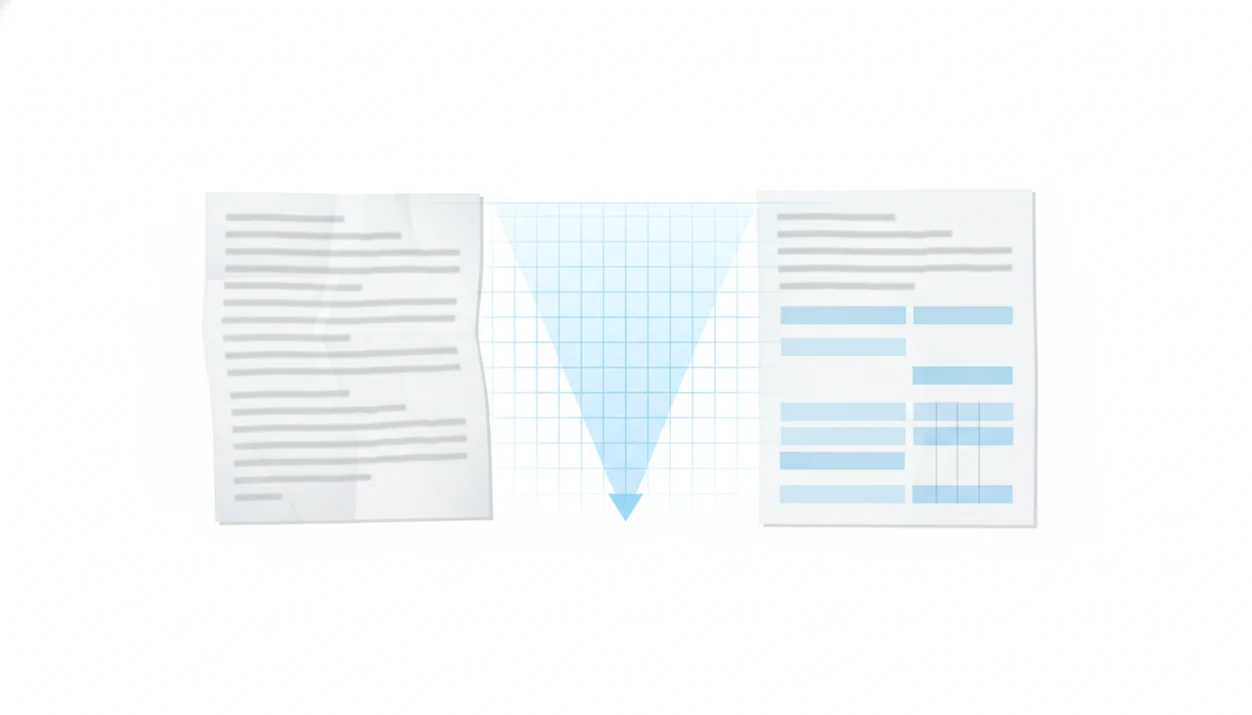
To find editable text in scanned pdf files, run OCR first, then check whether the new text layer can be searched, selected, copied, or exported. A scanned PDF is usually an image-only file until OCR turns the visible words into machine-readable text.
> Definition: OCR editable text is a machine-readable text layer created from a scanned PDF image so the document can be searched, copied, corrected, and exported.
TL;DR
- Scanned PDFs usually need OCR before text can be selected, searched, or edited.
- The best workflow is OCR first, verify the text layer, then export to Word, Excel, TXT, or searchable PDF.
- OCR quality depends on scan resolution, page skew, language settings, fonts, and layout complexity.
How OCR Finds Editable Text in Scanned PDF Files
OCR turns scanned page images into recognized text by detecting characters, words, line breaks, and layout zones. A scanned PDF normally behaves like a photo of a page, so dragging across a sentence may select the whole image instead of the words.
The mechanism is simple enough: optical character recognition analyzes pixel patterns, maps them to likely letters, then builds a text layer. In a searchable PDF, the visible page image stays in place while hidden text sits behind it. In Word or Excel export, the tool reconstructs that recognized text into a new editable file.
A gray shadow near the spine can matter. Tilted text near a binding may become “Iease” instead of “Lease,” so check the source document first.
Five Facts About Making a Scanned PDF Editable
- Scanned PDFs are often just images of text, even when the file extension says PDF.
- OCR is required before you can search, select, copy, or edit text on image-only pages.
- Modern PDF tools can create either a searchable PDF text layer or an editable Word, Excel, or TXT export.
- Language selection affects recognition accuracy because OCR compares shapes against expected letters, accents, and word patterns.
- Poor scans, skewed pages, handwriting, stamps, and complex layouts reduce OCR quality.
For most users, OCR first and export second is easier than converting immediately because it separates text recognition from layout rebuilding. If you need a dedicated mobile path, a scanned pdf ocr app should make the OCR step visible before export.
Small errors travel fast.
How to Use OCR to Search Scanned PDF Text
Use OCR first, then use normal PDF search to confirm the file has a real text layer. This is the cleanest way to search scanned pdf pages without guessing whether the file already contains selectable text.
- Open or upload the scanned PDF in a PDF tool that supports OCR.
- Choose OCR and set the document language before recognition starts.
- Run recognition on all pages or selected pages if only part of the file is scanned.
- Search for a specific word, name, or invoice number to verify the OCR text layer.
- Copy, correct, or export the recognized text to Word, Excel, TXT, or searchable PDF.
On a phone, watch where the finished file lands. It may save to iCloud Drive, Google Drive, OneDrive, or the iOS Files app instead of your Downloads folder.
Method for Checking OCR Editable Text Results
Did OCR actually make the scanned PDF editable? Try selecting one full sentence, then search for an uncommon word, number, or name from the page.
After that, compare the recognized text against the original scan. Look closely at tables, columns, headers, footers, rotated text, and any page with a stamp or handwritten note. A vendor spreadsheet extracted from PDF can look fine until “8” becomes “B” in a payment column. That error matters.
Use export preview before committing to Word or Excel. It is often faster to catch broken columns in preview than to repair a messy DOCX later. For table-heavy files, a focused app that extracts pdf tables to excel may be better than a general text export.
Export Formats for OCR Editable Text
Choose the export format based on what you need to do after OCR. Searchable PDF is not the same goal as an editable Word file.
| Export format | Use it when | Main tradeoff |
|---|---|---|
| Searchable PDF | You want the original page look plus search | Text may be hidden, not easy to rewrite |
| Word DOCX | You need to rewrite paragraphs, contracts, or letters | Layout may shift after conversion |
| Excel XLSX | You need tables, invoices, lists, or line items | Merged cells and columns may need cleanup |
| Plain text TXT | You only need the words copied out | Formatting is removed |
| Image JPG/PNG | You need visual pages, not editable text | Text remains non-editable |
Searchable PDF usually works best when the scan must look unchanged, while Word fits people who need to revise the wording.
App Workflow for Scanned PDF to Word or Excel
A mobile workflow should start by checking whether the PDF is image-only, then running OCR before conversion. Tools like PDF Converter AI App fit this pattern when the file needs OCR, export, and cleanup on a phone.
Use a mobile PDF converter that runs OCR before Word or Excel export, then lets you save, share, merge, split, or compress the finished file. Run OCR before converting scanned PDFs to Word or Excel, especially with files like `LeaseAddendumFinal.pdf` or `biology-reading-week-4.pdf`.
After OCR, expect cleanup rather than flawless conversion results. You may still need to merge pages, split a packet, or compress a file when Gmail shows the red ‘attachment too large’ banner.
Common Patterns When Users Search Scanned PDF Files
Users often expect every PDF to contain real text, but receipts, forms, medical records, invoices, and contracts are frequently image-only. OCR may make text searchable before it is clean enough to edit.
Invoices and tables
Invoices need extra checking because totals, dates, and item codes are easy to misread. If your main goal is spreadsheet cleanup, the guide to find pdf tables for excel covers that narrower workflow.
Contracts and forms
Contracts may search well after OCR but export awkwardly because initials, checkboxes, and form lines interrupt text flow. Buyer initials beside every addendum can break a paragraph into odd fragments.
Receipts and records
Receipts and records often contain faded print, logos, stamps, or personal data. Offline OCR may be preferable for sensitive files, while cloud OCR can be more convenient if the privacy review is acceptable.
AI-assisted correction can help normalize names, dates, and numbers, but you still need a human pass on important documents.
What OCR Editable Text Does Not Guarantee
OCR editable text does not guarantee perfect accuracy, unchanged formatting, or fully editable handwriting. It creates a machine-readable version of visible text, then you decide how much correction is needed.
Word and Excel exports can shift spacing, columns, tables, and headers. Handwriting, cursive notes, signatures, and stamps may remain uneditable or become rough guesses. Missing, blurred, or obscured text cannot be reconstructed reliably because the software has no clean letters to recognize.
Better scans help. For example, Tesseract’s OCR documentation lists rescaling, binarization, noise removal, and deskewing as preprocessing steps that can improve recognition quality: https://tesseract-ocr.github.io/tessdoc/ImproveQuality.html. The Library of Congress also notes that OCR output depends heavily on scan quality, typography, layout, and page condition: https://guides.loc.gov/digital-scholarship/ocr. If you are comparing tools, a tool that can convert scanned pdf should explain its OCR limits, not just its export buttons.
Limitations
OCR is useful, but it has technical limits that matter before you rely on the output.
- Very low-resolution or faxed scans can produce many recognition errors.
- Skewed, shadowed, cropped, or noisy pages reduce OCR accuracy.
- Handwriting, cursive notes, stamps, and signatures may not become editable.
- Multi-language, vertical, or right-to-left text may need special OCR settings.
- Complex tables, nested columns, and overlapping elements may export poorly.
- Cloud OCR may not be appropriate for sensitive documents without a privacy review.
- Large files can trigger phone storage warnings during OCR, compression, or export.
- Password-protected PDFs may need unlocking before OCR can process the pages.
For sensitive files, review tool behavior before uploading. A safe pdf converter app checklist should cover storage, deletion, cloud processing, and file permissions.
FAQ
Can scanned PDFs be edited?
Scanned PDFs can usually be edited only after OCR creates a machine-readable text layer. The original scan may still need manual correction.
How do I search text in a scanned PDF?
Run OCR on the scanned PDF, then use normal PDF search on the recognized text layer. If search finds words from the scan, OCR is working.
What is OCR text in a scanned PDF?
OCR text is machine-readable text recognized from a scanned page image. It lets the PDF be searched, copied, corrected, or exported.
Can OCR keep the original PDF formatting?
OCR can preserve some layout, especially in searchable PDF output. Complex tables, columns, forms, and rotated text may shift in Word or Excel.
Can I edit scanned PDFs for free?
Some free OCR tools can make scanned PDFs editable, but they may limit pages, accuracy, privacy controls, or export formats. A mobile OCR converter may be useful when phone-based export options are needed.
Does OCR work on handwriting?
OCR works better on printed text than handwriting. Cursive notes, signatures, and uneven writing are less reliable.
Why is my PDF not searchable?
Your PDF is probably image-only or lacks a valid OCR text layer. Run OCR, then search for a specific word to test the result.
Which format should I export after OCR?
Export to searchable PDF to keep the original look, Word to rewrite text, Excel for tables, or plain text for simple copying. A mobile OCR converter can be one option for these export workflows.