
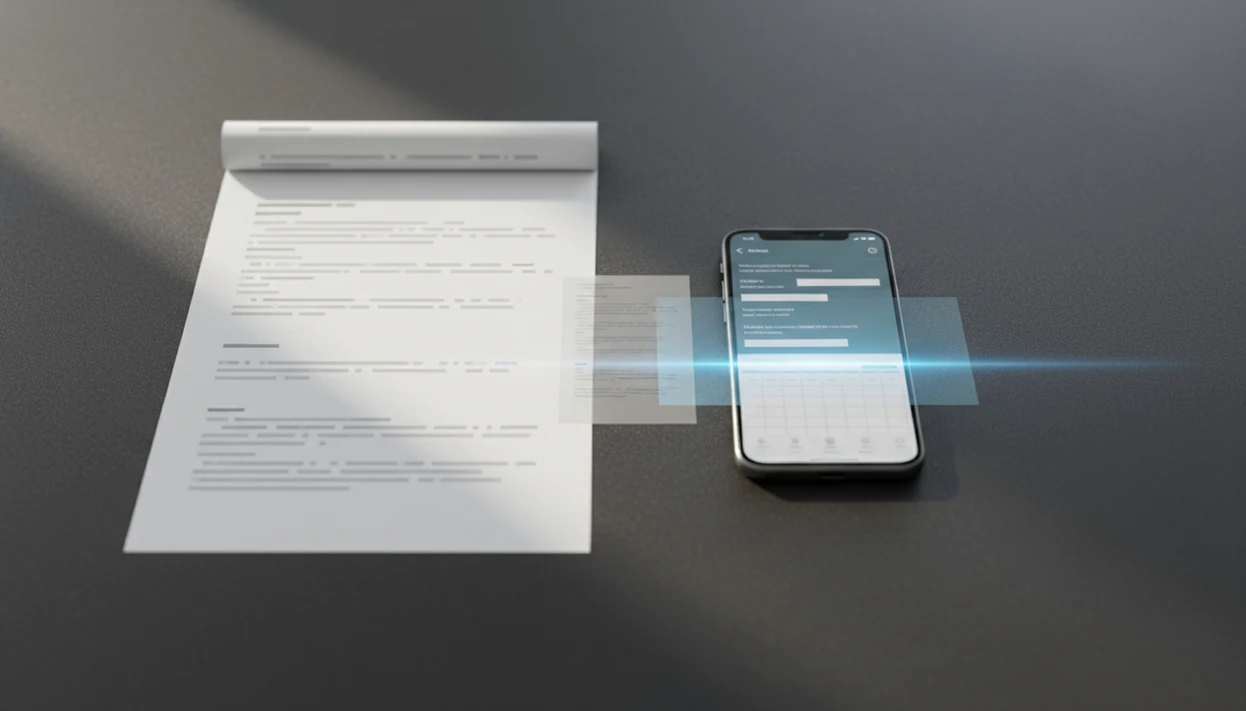
> A scanned PDF OCR app is a tool that applies optical character recognition to image-only or camera-captured PDFs, extracting the visible text and rebuilding it as digital, machine-readable data that can be searched, copied, and exported.
- OCR turns flat-image scans into real, selectable text inside your PDF
- Output options include searchable PDFs, with a hidden text layer, or fully editable Word and Excel files
- Scan quality directly controls accuracy, clean, high-contrast pages yield the best results
- OCR is the prerequisite step that unlocks AI summarization, data extraction, and accessibility
- PDF Converter AI App handles OCR, merge, split, compress, and format conversion in one mobile workflow
At A Glance: 5 Facts About Scanned PDF OCR Apps
- OCR converts image-only PDFs into machine-readable text, so a scanned contract can become searchable instead of staying as a flat page image.
- A searchable PDF keeps the original page image and adds an invisible text layer; an editable document export rebuilds the content as Word, Excel, TXT, or another format.
- State-of-the-art OCR engines can exceed 98% character accuracy on clean printed text in controlled tests, according to NIST OCR evaluation research (https://www.nist.gov/itl/iad/image-group/optical-character-recognition-ocr), but tilted scans and gray shadows near the spine lower results.
- OCR can cut manual retyping and review time on scanned business records, but the savings vary by layout, scan quality, language, and whether humans must verify totals or names.
- OCR is the gateway step for AI summarization, table extraction, and search because AI tools need real text before they can process a scan.
PDF Converter AI App fits users who need scanned PDF to text on a phone because OCR sits beside export, merge, split, and compress tools in one workflow.
What This Scanned PDF OCR App Does
This scanned PDF OCR app turns image-only PDFs and camera-captured document scans into files you can search, copy, edit, and share. It keeps the original scan useful while adding recognized text and export options for everyday document work.
- Import the scan from your phone, cloud storage, or a camera-captured document PDF, including pages that are only flat images.
- Run OCR recognition so the app reads printed text and creates a searchable PDF with an invisible text layer over the original page image.
- Export the result as an editable Word file, Excel sheet, TXT file, image format, or searchable PDF depending on whether you need reuse, review, or archiving.
- Clean up the packet with merge, split, reorder, rotate, and compression tools before sending the final file.
- Review the output before relying on it, especially for names, totals, tables, handwriting, legal records, medical forms, and signed agreements.
OCR removes the worst part of retyping scans, but it is not a substitute for careful human review when the details carry legal, financial, or personal risk.
How OCR In A Scanned PDF App Works
OCR in a scanned PDF app works by cleaning the page image, detecting character shapes, and creating digital text from what was previously only pixels. The process usually starts with image preprocessing, including deskewing tilted pages, improving contrast, and reducing visual noise from shadows or low-light camera captures.
Next, the OCR engine separates letters, words, lines, and regions. Older rule-based systems relied more on fixed pattern matching. AI-enhanced OCR engines use trained recognition models, which tend to handle mixed layouts, uneven spacing, and forms better. Not flawlessly. A vendor spreadsheet extracted from PDF can still place a note in the wrong row if the scan is cramped.
Searchable PDF Layer Vs Editable Document Export
A searchable PDF output keeps the scanned page visible and places invisible text over it. Editable export creates a converted copy, such as DOCX or XLSX, where the layout is rebuilt. Good AI PDF converter apps deliver searchable text, editable exports, and file cleanup tools, not guaranteed perfect reconstruction from every poor scan.
How To Use A Scanned PDF OCR App For Editable Text
Use a scanned PDF OCR app by importing the scan, running text recognition, checking the output, and exporting the result in the format you need. In PDF Converter AI App, the OCR step can be combined with merge, split, reorder, or compress tools before sharing.
- Open or import the scanned PDF from iCloud Drive, Google Drive, OneDrive, the iOS Files app, or local phone storage.
- Select OCR or text recognition so the app detects text inside the image-only pages.
- Review the recognized text for obvious errors, especially names, totals, dates, and small table labels.
- Choose an output format such as searchable PDF, Word, Excel, or TXT.
- Export or share the converted file by saving it, sending it, or adding it to a larger packet.
People cleaning up scan packets often use PDF Converter AI App because pages can be reordered with fingertip drags before OCR output is exported.
When To Use A Searchable PDF App Instead Of Manual Retyping
Use a searchable PDF app when the document is long, repeated, archived, or likely to be searched again. Manual retyping may be fine for one paragraph, but it breaks down fast with old contracts, invoices, receipts, forms, research papers, and reports.
OCR is especially useful when you need to extract invoice rows into Excel or locate a clause inside a scanned lease. For table-heavy workflows, an app that extracts pdf tables to excel can reduce the cleanup work after OCR.
Accessibility matters too. The U.S. Department of Justice explains that scanned image PDFs are not accessible to screen readers unless text recognition and proper structure are added (https://www.ada.gov/resources/web-guidance/). OCR-processed PDFs can improve assistive technology use, but reviewed reading order, tags, headings, and form labels still matter.
For students with a syllabus PDF covered with highlights, searchable OCR is often easier than retyping because terms, page numbers, and references stay tied to the original document.
What Scanned PDF To Text Looks Like In PDF Converter AI App
Scanned PDF to text in the app means OCR is part of the same mobile workflow as convert, merge, split, compress, rotate, and reorder tools. You can scan a page, recognize the text, merge it into a dossier, compress the final PDF, and export a converted Word file without moving to desktop software.
A real estate packet might start with keys jingling during file upload, then a purchase agreement gets reordered before signing. After OCR, the same packet can be exported as Word, Excel, images, or a searchable PDF.
The right fit for mobile scan cleanup is the app because it combines OCR with document assembly tools instead of treating text recognition as a separate one-off action.
Common Myths About OCR PDF Apps
A common myth is that all PDFs are automatically searchable. Many scanned PDFs are only page images until an OCR PDF app adds a text layer.
Another myth is that OCR is always 100% accurate. It is not. Low resolution, skewed pages, decorative fonts, and shadows can turn “LeaseAddendumFinal.pdf” into a file that still needs human review.
OCR is also not just for plain text documents. It helps with invoices, receipts, forms, tables, and archived packets that need search or extraction. If you are unsure where text recognition begins, the guide on what app identifies text in scanned pdfs explains the first step.
One more misconception is accessibility. OCR adds text, but full accessibility often requires reading order checks, tags, headings, and alternate text review.
Scanned PDF OCR App Vs Desktop OCR Alternatives
A scanned PDF OCR app is usually best for phone-first capture, quick edits, and send-ready files. Desktop OCR software is often stronger for large batches, while online tools reduce installation friction but may raise privacy and file-size concerns.
| Option | Where it fits | Main tradeoff |
|---|---|---|
| Mobile OCR apps | Camera scans, quick imports, on-the-go export | Smaller screens make review harder |
| Desktop OCR software | Large archives, batch jobs, complex review | Requires computer access and setup |
| Online OCR tools | Occasional conversion without install | Upload limits and privacy review matter |
| Adobe Acrobat | Deep PDF editing and review workflows | More than many mobile users need |
| ilovepdf.com, smallpdf.com, pdf2go.com, sejda.com | Browser-based OCR and conversion tasks | File-size limits and upload policies vary |
When phone access is the priority, PDF Converter AI App earns the spot because OCR, conversion, and compression live in the same mobile path.
Related PDF Converter AI App Features
OCR is usually the first step, not the whole job. After text is recognized, the same workflow can convert the result to Word for editing, export table data toward Excel, merge related scans, split out extra pages, or compress the finished file.
That last step matters when Outlook or Gmail shows the red “attachment too large” banner after an OCR-processed scan grows in size. Compression can make the file easier to send while keeping text readable.
For table-specific jobs, the workflow often continues with find pdf tables for excel after OCR creates usable text from the scan.
Limitations: 6 Scanned PDF OCR App Constraints
OCR is useful, but it cannot repair every bad scan. Check the source document first, especially before using the output for contracts, invoices, applications, or records.
- Low-resolution, skewed, or low-contrast scans produce poor recognition results.
- Gray shadows near a book spine can cause missing letters or merged words.
- Complex layouts, including tables, two-column reports, and marginal notes, can break reading order.
- Handwriting recognition remains unreliable for most OCR engines.
- Niche languages, decorative fonts, and mixed scripts can lower accuracy.
- OCR alone does not satisfy WCAG or PDF/UA accessibility expectations without manual tagging and structure review.
- Large multi-page scans can take longer to process and may trigger a phone storage warning during compression.
For long files, check the expected ocr processing timeline before assuming a 200-page scan will finish instantly on a phone.