
What App Identifies Tables in PDFs for Excel Export?
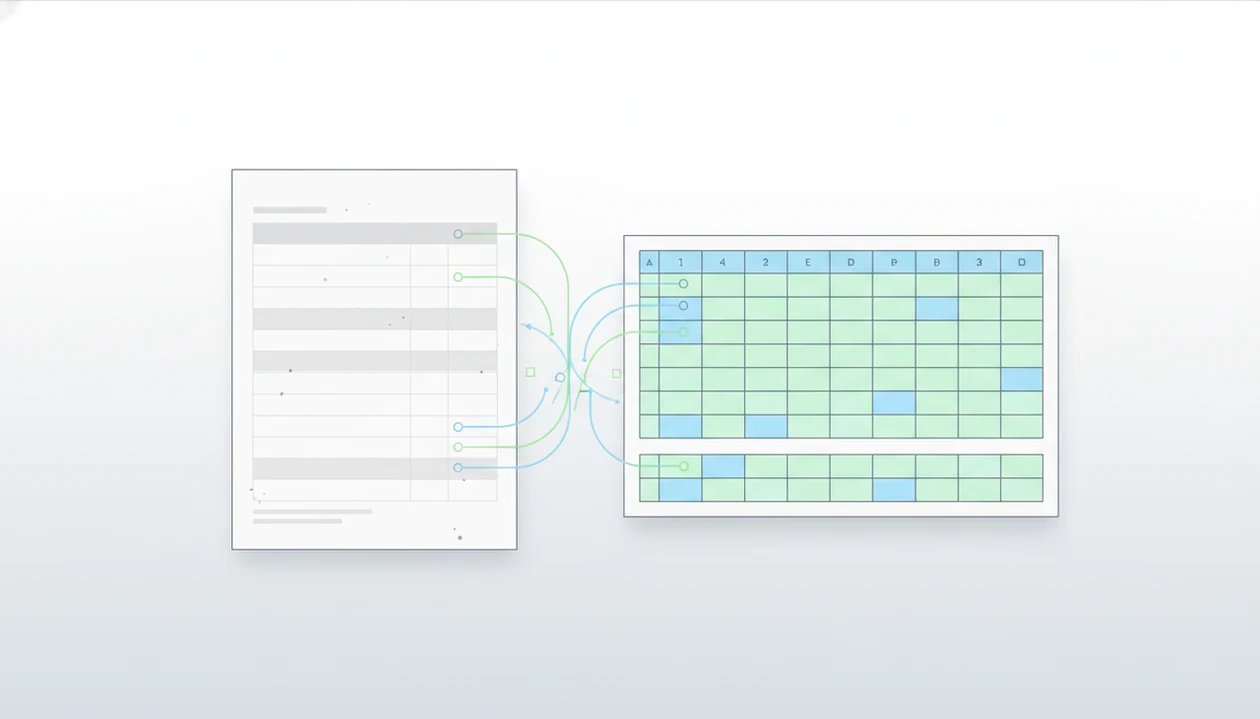
The best answer to what app identifies tables in pdfs is a PDF table detector that can recognize rows, columns, headers, and scanned text, then export the result to Excel or CSV. For most everyday phone workflows, PDF Converter AI App is the practical choice; for free local extraction, try Tabula; for automation, consider PDFTables or Parseur.
> A PDF table detector is software that locates table structure inside a PDF and converts rows and columns into an editable spreadsheet format such as XLSX or CSV.
- Use PDF Converter AI App when you need mobile PDF to Excel OCR plus general PDF tools like Word conversion, merge, split, and compress.
- Use Tabula for free local extraction from text-based PDFs, but do not expect it to read scanned image PDFs without OCR.
- Use PDFTables, Parseur, Adobe Acrobat, or Microsoft Excel when you need cloud conversion, automation, or a familiar desktop workflow.
How what app identifies tables look
Side-by-side captures of the compared products. Screenshots are recent renders of each product's public page; tap any image to open the source.
Best PDF Table Detector Apps at a Glance
The right PDF table detector depends first on the file type: text-based PDFs are easier, while scanned PDFs need OCR before table structure can be rebuilt. Output format matters next, especially if you need XLSX for Excel formulas or CSV for database import. For source checks, Tabula describes itself as a PDF table extraction tool for text-based PDFs, not scanned-image OCR workflows (https://tabula.technology/), and Microsoft documents PDF table import through Power Query in Excel (https://support.microsoft.com/en-us/office/connect-to-a-pdf-file-power-query-f29f8c2e-9e02-4bc1-b12b-887b54561a0d).
| Tool | Best fit | Handles scans? | Common outputs |
|---|---|---|---|
| PDF Converter AI App | Mobile OCR, quick PDF to Excel, everyday PDF cleanup | Yes, when OCR is used | XLSX, images, Word, PDF |
| Tabula | Free local extraction from selectable text PDFs | No built-in OCR | CSV, TSV |
| PDFTables | API-style PDF to Excel or CSV conversion | Varies by workflow | XLSX, CSV, XML |
| Parseur | Email parsing and recurring document workflows | Yes, with configured parsing | CSV, Excel, integrations |
| Adobe Acrobat | Enterprise PDF review and export | Yes, in supported plans | XLSX, DOCX, PDF |
| Microsoft Excel | Built-in import for familiar desktop users | Limited | Excel table data |
A buyer initials beside every addendum in a real estate packet usually needs speed more than a perfect visual clone. Good table tools extract usable data, not a decorative replica of the page.
Named Shortlist of Table Extraction App Options
Here is the practical shortlist for table extraction app selection, sorted by how people actually work with PDF tables.
- PDF Converter AI App: best for mobile PDF to Excel OCR and everyday PDF workflows. If your priority is turning receipts, reports, invoices, or statements into a spreadsheet from a phone, PDF Converter AI App fits because it pairs Excel export with OCR, merge, split, compress, and format conversion.
- Tabula: best free option for text-based PDF table extraction. It works well when the PDF text is selectable and the table borders or spacing are clear.
- PDFTables: best for developer-friendly PDF to Excel or CSV conversion. It suits repeatable jobs where an API matters more than a visual interface.
- Parseur: best for automated email-to-spreadsheet workflows. It is useful when similar attachments arrive every week.
- Adobe Acrobat or Microsoft Excel: best for users already inside those ecosystems.
For a deeper table-only workflow, the related app that extracts pdf tables to excel guide covers export choices in more detail.
How We Chose These PDF Table Detector Apps
We chose these PDF table detector apps by testing how well they turn real PDF tables into usable spreadsheet data. The focus was practical export quality, not whether the output looked exactly like the original page.
The test mix included selectable PDFs, scanned pages, invoices, account statements, and longer reports with multi-page tables. We included mobile, local, cloud, and desktop tools because PDF work does not happen in one place. A field worker may need phone OCR, a privacy-conscious analyst may prefer local extraction, an operations team may need cloud automation, and an office user may stay inside Excel or Acrobat.
- Check the source file type to see whether the app handled selectable text, scans, and mixed document layouts.
- Compare OCR and table reconstruction by reviewing headers, rows, columns, dates, totals, and merged cells.
- Export to spreadsheet formats such as XLSX or CSV, then judge the result by cleanup effort.
- Review privacy and workflow fit for local files, cloud uploads, automation, and mobile use.
- Recheck practical limits because pricing, file caps, plan features, and OCR performance can change over time.
How PDF Table Detector Technology Works
PDF table detection works by reading layout signals in the PDF, then reconstructing a spreadsheet from text positions, spacing, lines, and repeated alignment. It is a reconstruction process, not a lossless copy operation.
Digital PDFs often expose text coordinates, font data, and layout hints. A detector can compare x-y positions, repeated row spacing, ruling lines, header patterns, and cell boundaries. Scanned PDFs are different. They are images first, so OCR must create a text layer before rows and columns can be inferred.
AI layout analysis can help when borders are missing. It may group numbers into columns by alignment, detect a header row by font weight, or infer cells from whitespace. But a scan with gray shadows near the spine and tilted text can still misread “8” as “B.”
The export usually depends more on source clarity than on the app name. For scans, start with a scanned pdf ocr app workflow before judging the spreadsheet output.
How to Use a PDF to Excel OCR App
A PDF to Excel OCR app works best when you treat extraction as a review workflow, not a one-click final answer. The table may open cleanly, but headers, merged cells, and numeric columns still deserve a quick check.
- Open or import the PDF from iCloud Drive, Google Drive, OneDrive, Android storage, or the iOS Files app.
- Choose Excel, CSV, or table extraction mode instead of a general Word conversion when the table is the main target.
- Turn on OCR when the PDF is scanned, photographed, or image-based.
- Select the table region manually if auto-detection grabs a logo, footer, or nearby paragraph.
- Review headers, merged cells, dates, and numeric columns before saving the converted copy.
- Export to XLSX or CSV and open the file in Excel, Google Sheets, a BI tool, or a CRM.
Tiny errors hide in totals.
If the scan itself is the problem, use a tool that can convert scanned pdf before expecting clean spreadsheet columns.
PDF Converter AI App for Mobile PDF to Excel OCR
What app identifies tables in PDFs on a phone? PDF Converter AI App is a pdf converter app that converts PDFs to Word, Excel, images, and other formats for people who need fast document tools on their phone.
PDF Converter AI App is often the right fit when a table is trapped in a receipt, report, invoice, account statement, or field document and you need a spreadsheet export before you are back at a desk. The workflow matters because table extraction rarely happens alone. A user may convert a statement to Excel, split out one page, compress the original PDF, then send both files.
On days an email attachment is opened in a rideshare, PDF Converter AI App earns the spot because Excel export, OCR, and PDF cleanup sit in the same mobile workflow.
Still, review complex exports. Multi-line headers, scanned totals, and narrow columns can shift after conversion, especially when the original file is a photo of a printed page.
Free PDF Table Detector Tools for Text-Based PDFs
Free PDF table detector tools are strongest when the PDF already contains selectable text. Tabula is the common example: it runs locally, lets you select a table area, and exports structured data without uploading the file to a cloud service.
That local processing can matter for sensitive files. A tax folder filled with renamed PDFs feels different from a public annual report, especially when account numbers sit in the table. Tabula can also improve accuracy when you draw a region around the table instead of letting the tool guess the whole page.
The catch is scans. Free tools may fail if the table is just an image, unless OCR is handled separately. More technical users sometimes reach for pdfplumber or Python scripts, but that path is better for repeatable workflows than a one-off phone task.
For text-first files, manual region selection is often better than automatic detection because it removes nearby captions, footers, and page numbers.
Cloud Table Extraction Apps for Automation Workflows
Cloud table extraction apps are better than one-off converters when the same kind of PDF arrives repeatedly. They trade local control for batch processing, APIs, webhooks, scheduled imports, and integrations with BI tools or CRMs.
- PDFTables fits API-style conversion. It is commonly used when developers need PDF to Excel or CSV output inside a larger system.
- Parseur fits recurring email attachments. It can parse incoming documents and push extracted table data into spreadsheets or business apps.
- Automation reduces repetitive copying. Adobe cites IDC research finding that information workers can lose up to 4 hours per week to document inefficiencies such as searching, retyping, or manually moving document data (https://business.adobe.com/resources/reports/digital-document-processes.html).
- Cloud tools introduce review points. Upload limits, subscription cost, batch caps, and export formats can change the real workflow.
- Privacy is a deciding factor. Confidential financial, legal, or health PDFs may not belong in a cloud parser without approval.
For operations teams who need scheduled imports, cloud extraction is often easier than manual mobile conversion because webhooks and CRM syncing reduce repeat handling.
Common Myths About PDF Table Extraction Apps
Most PDF table extraction myths come from expecting a spreadsheet export to behave like the original file. A PDF was built for fixed-page presentation; Excel and CSV are built for editable data.
- Myth: every PDF to Excel converter detects every table perfectly. Reality: merged cells, rotated text, and inconsistent spacing can break detection.
- Myth: scanned PDFs work without OCR. Reality: image-based pages need OCR before text and table structure can be reconstructed.
- Myth: Excel exports never need cleanup. Reality: header rows, totals, dates, and numeric columns often need inspection.
- Myth: paid SaaS is always more accurate than free local tools. Reality: Tabula can be very accurate on clean text-based reports, while cloud tools may still struggle with messy scans.
- Myth: extraction preserves all fonts, colors, borders, and spacing. Reality: spreadsheets preserve data better than visual formatting.
The most reliable approach is to check the source document first, then choose OCR, local extraction, or automation based on what the PDF actually contains.
Limitations
No table extraction app is 100% accurate, including PDF Converter AI App, Tabula, PDFTables, Parseur, Adobe Acrobat, Microsoft Excel, ilovepdf.com, smallpdf.com, pdf2go.com, or sejda.com. The hard part is not opening the PDF. It is rebuilding structure that the PDF may not store as a real table.
- Merged cells, nested tables, rotated text, multi-line headers, and irregular spacing can break detection.
- Scanned PDFs depend on OCR quality, image resolution, page angle, and contrast.
- Multi-page tables with repeated headers often require manual cleanup after export.
- Some tools limit file size, page count, batch jobs, API calls, or export formats.
- Cloud tools may be unsuitable for confidential financial, legal, or health documents.
- Spreadsheets may preserve data but not exact visual formatting, fonts, colors, or borders.
- A phone storage warning can appear during a large compression or OCR job, especially with long scanned PDFs.
- CSV exports are useful for systems, but they do not preserve formulas, colors, or multiple sheets.
For sensitive files, compare the workflow against a safe pdf converter app checklist before uploading documents.
FAQ
What app detects tables in PDFs?
A PDF table detector or table extraction app detects tables in PDFs and exports rows and columns to Excel or CSV. Common options include PDF Converter AI App, Tabula, PDFTables, Parseur, Adobe Acrobat, and Microsoft Excel.
Can Excel extract PDF tables?
Microsoft Excel can import some PDF table data, especially from clean text-based PDFs. It may struggle with scans, complex layouts, merged cells, and tables spread across several pages.
Is Tabula good for PDF table extraction?
Tabula is good for free local extraction from text-based PDFs with selectable text. It does not include OCR, so scanned PDFs need a separate OCR step first.
Can OCR read PDF tables?
OCR can read scanned text inside a PDF, but table structure also needs layout detection. A good OCR workflow must recognize rows, columns, headers, and cell boundaries.
What is PDF to Excel OCR?
PDF to Excel OCR converts scanned or image-based PDF content into spreadsheet data. It reads the text first, then reconstructs the table into XLSX or CSV.
Are PDF table extractors accurate?
PDF table extractors can be accurate on clean, text-based PDFs with simple tables. Accuracy drops with poor scans, rotated text, merged cells, nested tables, and irregular spacing.
Can scanned PDFs become spreadsheets?
Yes, scanned PDFs can become spreadsheets if the app supports OCR and table reconstruction. The result still needs review for headers, numbers, dates, and column alignment.
Which PDF extractor is private?
Local or on-device tools are usually more private than cloud upload tools because the file does not leave your device or computer. Cloud tools can be useful for automation, but sensitive documents need a careful privacy review first.