
OCR Processing Timeline For Scanned PDFs And Images
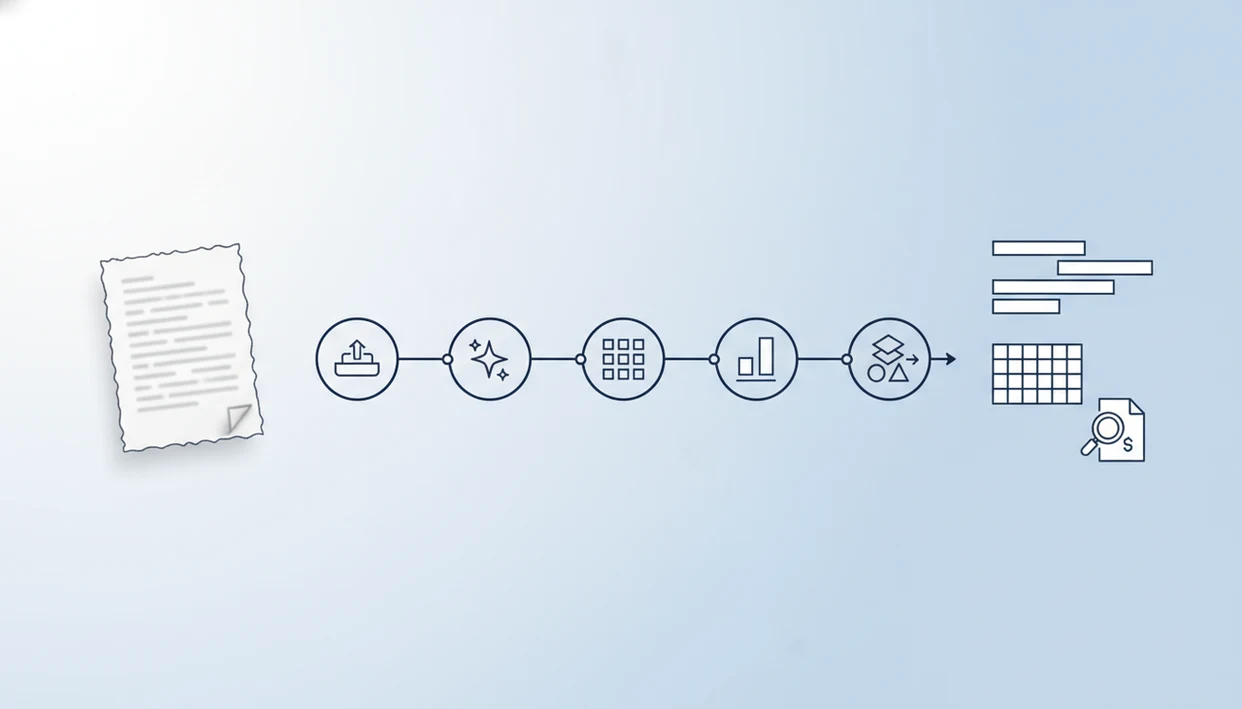
An ocr processing timeline usually runs from upload and scan cleanup to text recognition, layout mapping, export, and optional human review. Clean, short scanned PDFs can finish quickly, while large files, low-resolution images, handwriting, tables, and multi-column layouts add more processing and correction time.
> Definition: OCR processing timeline means the step-by-step path software follows to turn a scanned PDF or image into searchable, editable, or exportable text.
TL;DR
- The main OCR steps are file ingestion, image preprocessing, text detection, recognition, layout analysis, export, and review.
- Processing time depends most on page count, file size, scan quality, resolution, language complexity, handwriting, and table-heavy layouts.
- AI OCR can add processing work for layout and field detection, but it often saves time by reducing manual cleanup after export.
OCR Processing Timeline Definition For Scanned PDFs
OCR processing timeline means the full path from scanned image input to usable text output, not just the seconds spent recognizing characters. It includes upload, file checks, image cleanup, recognition, layout mapping, export, and review.
A scanned PDF is basically a page image inside a PDF container. It may look readable on screen, but Word, Excel, and search tools cannot use the words until OCR adds a text layer or exports the content. A born-digital PDF is different; it already contains selectable text, so it can often skip recognition.
For everyday files like `LeaseAddendumFinal.pdf`, tools such as PDF Converter AI App can run OCR and conversion from a phone, then export to an editable Word file, Excel sheet, searchable PDF, or plain text. The result still needs checking, especially when the scan has gray shadows near the spine or tilted lines.
Five OCR Steps That Shape The Processing Timeline
The OCR timeline is easiest to understand as five ordered stages. Each stage can be short, but any one of them can become the slow part.
- File ingestion: The app uploads or opens the file, validates it, counts pages, checks file size, and may place the job in a queue.
- Image preprocessing: The engine rotates pages, de-skews tilted scans, adjusts contrast, removes noise, and may binarize the image into cleaner black-and-white regions.
- Text detection and recognition: OCR finds character regions, lines, and words, then converts visual marks into machine-readable text.
- Layout analysis: The system maps paragraphs, columns, headings, tables, totals, and reading order so the export is not just a pile of words.
- Export and review: The output becomes Word, Excel, searchable PDF, or text, then someone checks uncertain characters and broken structure.
That last step is where time hides. A spreadsheet preview on a cracked screen can look fine until the totals column shifts one cell.
How OCR Works From Image Pixels To Editable Text
OCR works by turning page pixels into text through image normalization, region detection, character recognition, layout inference, and export. In plain terms, the software first cleans what it sees, then guesses what the visible marks mean.
Preprocessing is the normalization step. It corrects rotation, reduces blur or background noise, improves contrast, and prepares the page for recognition. After that, the OCR engine detects text regions, lines, words, and characters. Language models, dictionaries, and confidence scores help decide whether a mark is “1,” “I,” or “l.”
Modern AI layout models add another layer. They infer reading order, tables, forms, headings, labels, and semantic fields such as invoice totals or dates. Clean machine-printed text can reach high accuracy under good image conditions, according to OCR research, but a phone photo with curled paper still takes more checking. The pocket scan is real.
Before You Start OCR Processing
Before you start OCR processing, make sure the file actually needs recognition and that the source scan is good enough to convert. A few checks up front can save a second run, especially for tables, legal pages, or files you plan to share.
- Test the PDF first by trying to select, copy, or search a word on the page. If the text is already selectable, the file may be born-digital or already OCRed, so a normal conversion may be enough.
- Use the cleanest source available rather than a compressed screenshot or crooked phone photo. The clearest scan, highest contrast, and least page curl usually produce the better export.
- Check the job details before upload, including file size, page count, document language, and whether you need Word, Excel, searchable PDF, or plain text.
- Decide whether cloud OCR is appropriate for the document. Contracts, IDs, medical records, payroll files, and bank statements may need a privacy or company-policy check first.
- Keep the original scan until you have opened the exported file, searched it, and compared important names, numbers, dates, and tables against the source.
How To Use OCR Processing In A PDF Converter App
Use OCR processing by choosing a scanned PDF or image, selecting an OCR-based output, starting conversion, then checking the exported file before you send it. A good ai pdf converter app for converting pdfs to word, excel, images, and other formats plus merge split and compress tools should deliver practical file handling, not guaranteed accurate conversion from every scan.
Numbered OCR app steps
- Open the scanned PDF or image in the PDF converter app from Files, iCloud Drive, Google Drive, OneDrive, or local storage.
- Select OCR or an OCR-based output such as convert-to-Word, convert-to-Excel, searchable PDF, or text.
- Choose the document language and export format when the app offers those settings.
- Start conversion and wait through upload, recognition, layout mapping, and export.
- Review the result for missing text, table errors, rotated pages, and formatting problems.
- Save, share, or re-run OCR with a cleaner scan if the first export is wrong.
For mobile workflows, a scanned pdf ocr app is often easier than desktop software because the scan, conversion, and share sheet stay on the same device.
Scanned PDF Processing Time By Document Type
Different scanned PDFs slow down at different points in the OCR pipeline. Simple pages usually spend time in recognition and export, while structured documents often spend more time in layout mapping.
| Document type | Timeline stage that often dominates | What to watch |
|---|---|---|
| Clean typed letter | Upload, recognition, export | Check paragraph breaks and headers |
| Phone photo scan | Cleanup and de-skewing | Shadows, blur, page curl, tilted text |
| Receipts and invoices | Layout and field detection | Totals, dates, tax lines, vendor names |
| Bank statements and forms | Layout mapping and validation | Account numbers, columns, checkboxes |
| Tables or spreadsheets | Structure mapping before Excel export | Merged cells, shifted columns, missing totals |
| Large multi-page PDF | Queueing, memory, batch limits | Upload speed, app limits, cloud throttling |
Tables are the common surprise. An inspection report opened at a showing may display clearly, but exporting its tables into Excel requires structure, not just readable words.
Scan Quality Factors That Slow OCR Steps
Why does a scanned PDF take longer to OCR? Poor scan quality forces the software to spend more time cleaning the image and forces the user to spend more time correcting the export.
Low resolution, blur, shadows, skew, weak contrast, compression artifacts, and page curl all make OCR harder. Digitization guidance commonly recommends 300 to 400 dpi imaging and proper contrast for better OCR quality. At that range, letters usually have enough detail for recognition without creating unnecessarily huge files. For example, U.S. Federal Agencies Digital Guidelines Initiative imaging guidance discusses resolution and quality targets for digitization workflows source.
Preprocessing helps. Binarization can separate text from background, and de-skewing can straighten tilted lines before recognition. Research on difficult OCR documents has found that preprocessing can substantially reduce character errors, which reduces cleanup after conversion.
Handwriting, cursive, unusual fonts, stamps, and mixed languages still need review. For scanned PDF processing, a clean source document usually saves more time than any setting changed after the fact.
AI OCR Timeline For Tables, Forms, And Layout Mapping
AI OCR does more than read characters. It classifies page regions and relationships, such as which label belongs to which value, which lines form a table, and which heading starts a new section.
That extra analysis can add seconds to raw processing, especially on forms, invoices, statements, and multi-column reports. It can also save minutes later because the exported Word or Excel file needs less repair. For table-heavy files, the app that extracts pdf tables to excel workflow depends on this structure mapping, not just character recognition.
In a PDF converter workflow, OCR sits inside the broader job of converting scanned PDFs into Word, Excel, images, searchable PDFs, and other outputs. The practical point is simple: AI layout work may make the progress spinner last longer, but it can reduce the time spent fixing headings, totals, and reading order after export.
OCR Accuracy Evidence And Timeline Expectations
OCR accuracy affects the real timeline because correction and validation can take longer than recognition. Fast OCR is only useful if the exported text is reliable enough for the task.
- Clean machine-printed text can reach 98 to 99 percent accuracy under good image conditions, according to a 2018 review of OCR tools source.
- Tesseract 4.0 reached character error rates as low as 0.8 to 1.9 percent on high-quality English text in a large benchmark of more than one million pages source.
- Automated document capture can reduce manual data-entry work, but savings vary by volume, document type, and review requirements; vendor and analyst estimates should be treated as workflow-specific rather than universal benchmarks source.
- Accuracy changes total time because review may dominate the job when numbers, names, or table cells matter.
- Instant OCR claims are hard to compare unless vendors test the same files, scan quality, page count, language, and export format.
For business records, review is part of the timeline, not an optional afterthought.
Common OCR Timeline Mistakes In Scanned PDF Processing
The most common OCR timeline mistake is treating recognition speed as the whole process. Upload, preprocessing, layout mapping, export, and review can all take time before the file is usable.
Another mistake is assuming every OCR tool behaves the same. Engines vary by recognition model, cloud queue, device hardware, file-size limit, and how much layout analysis they attempt. AI OCR is not instant or perfect; it can improve structure, but it still depends on the original scan.
Scanned PDFs also differ from born-digital PDFs. A born-digital file may already have searchable text, while a scan needs image-based recognition before text selection works. If you need to find editable text in scanned pdf files, first check whether the text layer exists at all.
Batch size matters too. Large jobs can hit queueing, concurrency limits, throttling, or rate caps. Skipping review can leave wrong totals, broken tables, and “O” where a zero belongs.
OCR Export Check For Word, Excel, And Searchable PDF
Check an OCR export by testing search, copying text, validating numbers, and comparing sample pages against the original scan. This is the shortest way to catch failures before you email the converted copy.
- Search the exported file for two or three words that clearly appear in the scan.
- Copy and paste one paragraph into a note or email draft to confirm a real OCR text layer exists.
- Check tables, totals, dates, names, and account numbers against the original image.
- Review multi-column reading order so the exported text does not jump across the page incorrectly.
- Compare the first page, last page, and one middle page against the source scan.
- Re-run OCR with a cleaner image or different output format if the export is wrong.
For Excel exports, table structure matters more than visual similarity. For searchable PDFs, text selection and search matter more than whether the page looks newly formatted. If the file is sensitive, run a quick safe pdf converter app checklist before using cloud OCR.
Limitations
OCR timelines vary widely, and no guide can predict every file. The same app may finish one clean page quickly, then slow down on a 200-page image batch with weak contrast.
- Scan quality, file size, page count, language, and layout complexity all change the timeline.
- There is no universal end-to-end benchmark for comparing vendor OCR speed claims.
- AI layout and extraction features can increase raw processing time even when they reduce cleanup time.
- Handwriting, cursive, unusual fonts, stamps, and damaged pages may require specialized models or manual review.
- Large multi-hundred-page PDFs or image batches may hit queueing, memory, upload, or cloud throttling delays.
- Low-resolution or noisy scans can reduce accuracy and increase correction time.
- Sensitive documents may require privacy review before cloud-based OCR is appropriate.
A red “attachment too large” banner in Gmail or Outlook is a separate problem. Compression can help sharing, but it may also make OCR harder if image detail is removed too aggressively.
FAQ
How long does OCR take?
OCR can take seconds for a clean short scan, but longer for large PDFs, low-quality images, tables, handwriting, or complex exports. The practical timeline includes upload, cleanup, recognition, layout mapping, export, and review.
Why is OCR so slow?
OCR is slow when the file needs upload time, scan cleanup, de-skewing, layout analysis, table detection, or cloud queueing. Large batches and image-heavy PDFs can also hit memory or file-size limits.
How does OCR work?
OCR works by cleaning the image, detecting text areas, recognizing characters and words, mapping layout, and exporting a searchable or editable file. Confidence scores and language models help the engine choose likely text.
Can OCR read scanned PDFs?
Yes, OCR is designed to read scanned PDFs by adding a text layer or exporting recognized text into another format. Without OCR, many scanned PDFs are only page images.
Does OCR work on images?
Yes, OCR can process images such as JPG, PNG, and phone scans when the text is visible enough. Blur, shadows, skew, and low resolution reduce accuracy.
Is AI OCR more accurate than basic OCR?
AI OCR can improve layout, context handling, table detection, and form field extraction. It still depends on scan quality and should be reviewed before use.
What slows scanned PDF processing?
Scanned PDF processing slows down because of page count, resolution, blur, skew, handwriting, tables, file size, and batch limits. Complex layouts also add review time after export.