
Mobile PDF Success Stories for Document Workflows
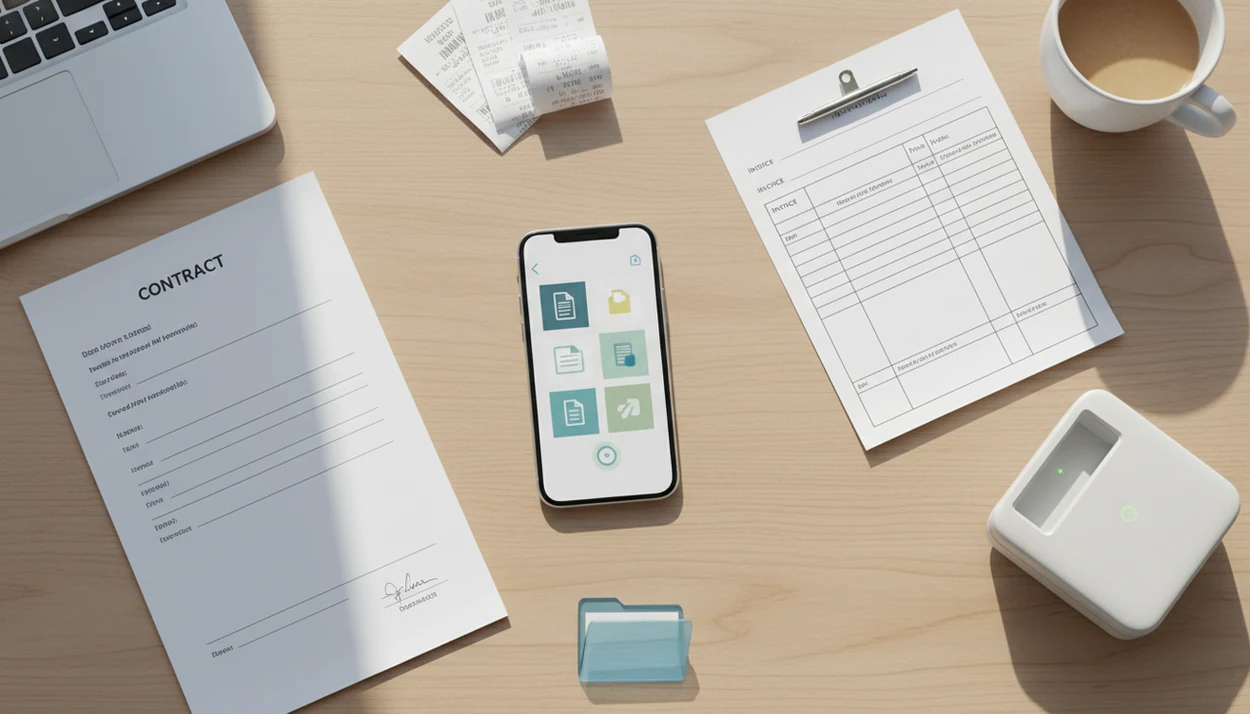
Mobile PDF success stories work best when they show a specific document problem, the conversion workflow used, and the measurable result. The strongest examples involve everyday tasks like turning invoices into Excel files, editing contracts in Word, merging field reports, compressing email attachments, or using OCR on scanned forms.
Definition: PDF Converter AI App is a pdf converter app that converts PDFs to Word, Excel, images, and other formats for people who need fast document tools on their phone.
TL;DR
- The most useful pdf app results come from repeated document tasks, not one-time novelty conversions.
- Mobile PDF case studies are strongest when they combine conversion with merge, split, compress, OCR, and sharing tools.
- Realistic document workflow examples should mention time saved, fewer manual steps, fewer errors, and any review still required.
How Mobile PDF Success Stories Work in Real Document Workflows
PDF converter app success stories are scenario-based document workflow examples, not generic testimonials. A credible story names the file, the mobile action, the output format, and what changed after the document was sent, stored, or edited.
Most workflows move through five steps: capture the file, convert it, clean up pages, share the result, and save the final copy in iCloud Drive, Google Drive, OneDrive, or the iOS Files app. A counteroffer PDF sent from a driveway is a better example than “it saved time,” because the setting explains why mobile mattered.
Adobe reported that 73% of U.S. workers use mobile devices for work at least weekly, which supports the demand for phone-first document handling source. Success still depends on scan quality, repeated need, and choosing Word, Excel, image, or PDF output correctly.
Method Used to Track PDF App Results Across Document Workflow Examples
Each story should track the starting document problem, the mobile actions taken, the output format, and the final business or personal result. Representative mobile pdf case studies are useful only when they avoid “worked great” language and show what was actually reduced.
- Starting problem: The user had a PDF that needed editing, extraction, cleanup, compression, or sharing.
- Mobile action: The workflow used conversion, OCR, merge, split, compress, reorder, or cloud saving.
- Output format: The result became DOCX, XLSX, JPG, PNG, or a cleaner PDF packet.
- Measured result: The story notes minutes saved, retyping avoided, fewer errors, or faster sharing.
- Review step: The user checked totals, layout, OCR text, or signature pages before sending.
IDC reported that improved document processes can reduce document-task time by up to 28% and errors by up to 30% source. These examples are representative scenarios, not guaranteed results for every file.
PDF App Results at a Glance
PDF app results are easiest to compare when each story shows the file, the phone action, the output, and the final check. The table below keeps the scenarios compact without treating any result as guaranteed.
| Scenario | Starting file | Mobile action | Output and observed result | Review step |
|---|---|---|---|---|
| Student | Scanned lecture handout | Run OCR, convert to Word, compress | Editable notes and searchable text; less retyping when the scan is clear | Check OCR text and page order |
| Real estate | Contract packet | Split pages, edit one page, merge, compress | Smaller corrected PDF sent from the phone; faster client response | Check clauses, signatures, and compliance details |
| Office team | Vendor invoice PDFs | Use OCR or extraction, export to Excel | Spreadsheet rows for reconciliation; fewer copy-paste steps | Check totals, dates, and table labels |
| Small business | Receipts and bank PDFs | Merge monthly records, compress, export selected totals | One cleaner record packet; easier bookkeeping handoff | Check amounts and missing receipts |
- Match the starting file to the right tool: OCR for scans, Excel export for tables, merge for packets, split for page selection, and compression for sharing.
- Compare the converted file with the original before sending.
- Keep human review in the loop for sensitive files, especially money, legal, school, HR, or regulated records.
Student Mobile PDF Case Study: Lecture Notes Converted for Editing
A student receives scanned lecture handouts as PDFs and needs editable study notes before class. The practical win is not magic conversion; it is less retyping and a cleaner file before the group chat starts filling up.
- Starting file: A scanned handout on a dorm desk, saved as `biology-reading-week-4.pdf`.
- Mobile workflow: Open the PDF, run OCR, convert PDF to Word, and remove extra pages.
- Cleanup step: Compress the final file so it uploads without stalling on campus Wi-Fi.
- Storage step: Save the edited DOCX and final PDF to Google Drive or the iOS Files app.
- Result: The student highlights faster, shares cleaner notes, and searches converted text.
McKinsey found that knowledge workers spend about 19% of their time searching for and gathering information source. For students, searchable converted notes can reduce that same kind of digging. For scanned class materials, OCR usually works best when the page is clear, while manual cleanup fits tilted scans with gray shadows near the spine.
Real Estate PDF App Result: Contract Pages Split, Signed, and Sent
A real estate agent receives a long contract bundle while away from a laptop. The useful mobile result is a smaller, corrected packet sent quickly, not a claim that contract review can be skipped.
The workflow starts by splitting only the needed pages. The agent converts one clause page to Word for a quick text edit, merges the corrected page back into the packet, compresses the file, and sends it by email or a messaging app. Open house flyers beside legal forms make this kind of file pile feel normal, not theoretical.
The outcome is a faster client response, fewer separate attachments, and a cleaner record of what was sent. However, legal or compliance-sensitive edits still require human review before sending. Good ai pdf converter app for converting pdfs to word, excel, images, and other formats plus merge split and compress tools deliver faster file handling, not legal judgment or guaranteed approval.
Office Team Document Workflow Example: Invoice PDFs Converted to Excel
An office team receives recurring vendor invoices as PDFs and needs spreadsheet data for reconciliation. The strongest pdf app results come when the same fields are extracted every week, not when someone tests one unusual invoice once.
A repeat workflow can convert PDF to Excel, use OCR or AI extraction for invoice numbers and totals, review the spreadsheet, and save it to a shared OneDrive folder. A delivery slip scanned under fluorescent lights may still need a second look, especially if the vendor stamp crosses a table row.
The outcome is fewer copy-paste steps, easier sorting, faster reporting, and lower risk of manual entry errors. AI extraction should be reviewed because fields, tables, totals, and labels can be misread. Teams that work from vendor spreadsheets may also need an excel to pdf converter app when finished reports must be locked as shareable PDFs.
Small Business Mobile PDF Case Study: Receipts Merged for Monthly Records
A small business owner collects receipts, supplier forms, bank PDFs, and tax notes throughout the month. The mobile workflow succeeds when it turns loose files into one record packet before bookkeeping day.
- Capture: Convert receipt photos to PDF after purchase, instead of waiting for a scanner.
- Organize: Merge related receipts, supplier forms, and bank PDFs into monthly folders.
- Compress: Reduce the record packet before emailing it to a bookkeeper.
- Extract: Export selected totals to Excel when a spreadsheet is easier to reconcile.
- Store: Save the final packet with a filename like `MarchReceipts2025.pdf`.
Pew Research Center reported that 81% of U.S. adults owned a smartphone in 2019, which helps explain why mobile-first workflows are practical for small operators source. Receipt photos turned into one file are easier to audit than a download folder cluttered with drafts.
How to Use Mobile PDF Case Studies to Build Your Own Workflow
Use mobile PDF case studies as patterns, then test them against one repeated task you actually handle. The best workflow is the one that removes repeated manual steps without removing human review.
- Choose one repeated document task, such as invoices, contracts, receipts, class notes, or field reports.
- Pick the needed output format, such as Word for editing, Excel for tables, JPG for images, or PDF for sharing.
- Test conversion quality with one real file before changing the full workflow.
- Add merge, split, compress, OCR, or reorder tools only where they remove a clear step.
- Save the final workflow, including filename rules and the cloud folder where finished files belong.
A download pdf to word app workflow fits editable text changes, while Excel output fits tables and reconciliation. Small distinction. Big cleanup difference.
Common Patterns in Mobile PDF Success Stories
The repeated pattern is simple: mobile PDF workflows succeed when conversion is paired with cleanup and sharing. The biggest wins often come from boring tasks, such as invoices, forms, reports, contracts, and receipts.
One-app handling: Users avoid switching between a scanner, converter, compressor, and email app. Tools like PDF Converter AI App, Adobe Acrobat, Smallpdf, and iLovePDF are often compared for this reason.
Direct sharing from phone: Finished files move straight to Gmail, Outlook, Messages, Slack, iCloud Drive, Google Drive, or OneDrive.
Conversion plus cleanup: A merge pdf app is useful when the result must be one packet, not five attachments.
Searchable outputs: OCR adds a text layer; AI-assisted extraction tries to identify structured fields. Gartner has said 70% of new enterprise applications would use low-code or no-code technologies by 2025, which reflects the broader shift toward automated document workflows source.
What Mobile PDF Case Studies Do Not Prove
Mobile PDF case studies do not prove every PDF will convert perfectly. They show what can happen when the file, output format, and workflow are a good match.
Complex layouts, custom fonts, poor scans, handwriting, and image-heavy files can still need cleanup. A scanned page with tilted text and gray shadows near the spine may produce OCR errors, even when the same app handles clean typed pages well. The original file versus converted copy should always be checked before sending.
Mobile workflows may also depend on cloud processing, device speed, phone storage, and file-size limits. The red “attachment too large” banner in Gmail or Outlook is often the moment people discover compression matters. Sensitive or regulated documents may require security review before upload, conversion, or sharing, especially in legal, healthcare, finance, and HR workflows.
Limitations
PDF conversion success depends on file quality, device conditions, and review habits. These limits apply to PDF Converter AI App and to mobile PDF tools generally.
- Complex PDFs with heavy graphics, custom fonts, layered objects, or unusual layouts may convert imperfectly.
- Scanned documents can produce OCR errors, especially with low resolution, shadows, skew, handwriting, or faint ink.
- AI extraction can misread invoice fields, table structures, totals, dates, labels, and vendor names without review.
- Very large or image-heavy PDFs may run slowly or fail on older phones, especially when storage is nearly full.
- Some workflows may require cloud processing, which can create privacy, security, or compliance concerns.
- Password-protected files may need the correct password before conversion, splitting, merging, or compression.
- Success stories usually describe good-fit workflows, so results vary by document quality and user review habits.
If a file controls money, rights, grades, or compliance, check the converted copy before you rely on it.
FAQ
Do mobile PDF apps really save time?
PDF converter apps can save time when they replace repeated manual steps such as retyping, copying tables, merging files, or compressing attachments. They may not save time when the source PDF is damaged, handwritten, or heavily formatted.
Can I convert invoice PDFs to Excel on my phone?
Yes, many mobile PDF tools can convert invoice PDFs to Excel, especially when tables are clear and text is selectable. OCR or AI extraction may still require review for totals, dates, tax fields, and vendor names.
How accurate are mobile PDF conversions?
Accuracy depends on the source file, layout complexity, scan quality, and output format. Clean digital PDFs usually convert better than skewed scans, image-heavy pages, or documents with custom fonts.
Can a scanned PDF become editable text?
Yes, OCR can add a text layer to a scanned PDF and allow export to editable Word or searchable PDF formats. Results are better when the scan is sharp, straight, and high contrast.
What types of documents convert best in a PDF app?
Typed documents, simple forms, invoices with clear tables, reports, receipts, and standard contracts often produce useful results. A photo to pdf scanner app can help when the starting point is a camera image rather than an existing PDF.
Do PDF converter apps work without internet?
Offline support depends on the app, file type, and task. Some simple conversions may run locally, while OCR, AI extraction, batch jobs, or large files may require cloud processing.
Is it safe to convert sensitive PDFs on a phone?
Safety depends on local processing, cloud upload behavior, storage permissions, sharing settings, and the sensitivity of the file. For regulated documents, review the app policy and your organization’s rules before converting or sharing.